

How to Migrate Your Shopify Site to WooCommerce
Written by 
Shopify has a lot of advantages. It's really easy to register an account, configure some options, and have a storefront up and running in no more than a few hours. It's simple, but reasonably customizable, and is pretty reliable for many small businesses and entrepreneurs.
On the other hand, it's very much its own isolated ecosystem. While it has a lot of apps and integrations, you're still limited to what Shopify allows on its platform, and there are a lot of limitations on customization. The limitations can chafe over time, and the more you grow, the more constricting they feel.
One of the most commonly switched-to platforms out there is WooCommerce. WooCommerce is a fantastic storefront management plugin for WordPress, which means you have all of the incredible power and extensibility of WordPress, the fully-featured storefront of a dedicated platform in WooCommerce, and none of the restrictions or limitations of a fixed ecosystem like Shopify.
If you, too, want to make the jump from Shopify to WooCommerce/WordPress, what do you need to do? I've put together this guide to help walk you through it.
Key Takeaways
- Clean up your Shopify store before migrating to reduce data volume, costs, and potential errors during transfer.
- Set up WordPress and WooCommerce hosting first, including payment integrations, plugins, and styling, before importing any data.
- Three migration methods exist: hiring an expert (most expensive), manual CSV export/import (free but time-consuming), or automated tools.
- Automated tools like S2W, LitExtension, Cart2Cart, and similar plugins range from free to several hundred dollars depending on features.
- After migrating, test thoroughly, update DNS settings, implement URL redirects, and keep your Shopify account active for one to two months.
Step 0: Consider a Shopify Cleanup
Before getting into the migration proper, one thing you might consider doing is going through your Shopify store and cleaning it up. The more data you migrate later, the longer it will take, the more chances there will be for problems, and the more expensive it might be using certain pay-for-volume migration tools.
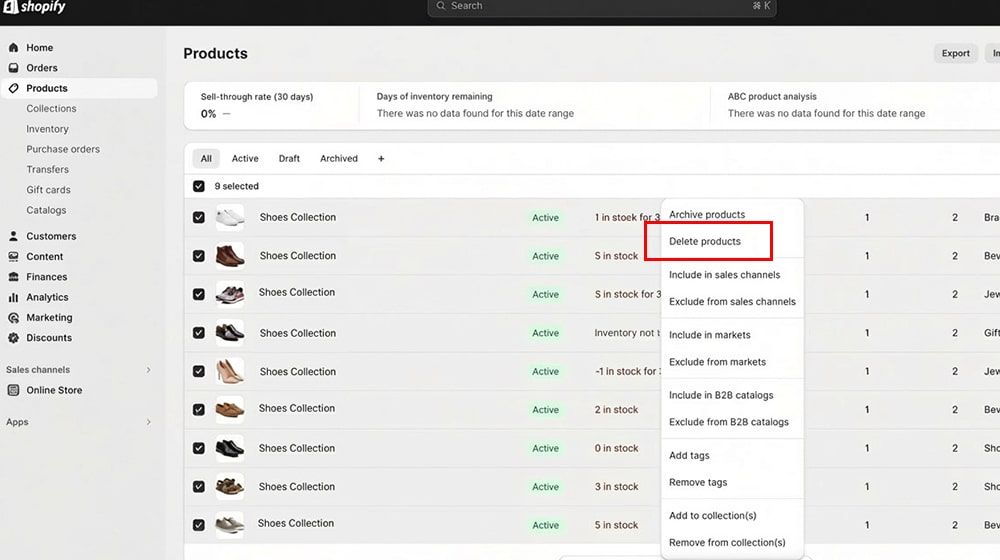
If you want to, what should you look for to clean up?
- Old products. It's easy for a Shopify store to have old product data for things you don't sell anymore, and there's no reason to migrate those products.
- Tag data. Old tags you don't use can also be purged.
- Coupons. You can migrate coupon data, but if you aren't actively using or reusing coupon data, it might be better to leave it, since it usually costs more as a special data type.
- Blog posts. If your blog is good, migrate it. If it's an afterthought, low quality, or old and ignored, you might as well ditch it and restart. Do an actual audit to make sure you aren't losing valuable backlinks - and consider removing posts with zero visitors before you move, though!
- Apps and integrations. Some of these can be replicated with WooCommerce extensions or WordPress plugins. Others might need custom code. Figure out what you need to migrate and if you need anything special to do so.
You can also take this opportunity to do some data standardization if you want. Things like consistency in SKU formatting and product naming, for example, are easiest to fix now rather than later. It's also worth thinking about whether deleting old low quality content could improve your rankings once you've moved.
Once that's done, you can get to the migration work.
Step 1: Set Up the New Site
The first thing you need to do is set up the site you'll be moving everything to. You won't be able to link it to your existing domain (if you're using a custom domain from Shopify) quite yet, but you can have everything else up and running and ready before you make the jump.
Get web hosting. All of the major web hosts these days will have a variety of options for openly customizable sites or managed WordPress hosting. It's up to you how much control you want to relinquish in favor of saving a few bucks and offloading some maintenance tasks. I don't have a firm web host recommendation, either; the big names are more or less the same these days.
Install WordPress and WooCommerce. At the absolute bare minimum, you will need these two installed. WordPress first, since it's the framework your site will run on. WooCommerce second, since it's a plugin for WordPress.
Don't forget to configure your merchant account integrations in WooCommerce. You don't want to import your products, shift everything over, move the URL, and find out you can't actually accept orders, right?
Install other plugins, as you like. There are tons of plugins you can install across many different categories. Don't worry about getting everything perfect right off the bat; you can always add, change, and remove plugins later. If you're interested in some resources, I have some recommendations.
As far as plugins you should install off the bat, consider plugins in these categories:
- Security. Anti-spam, something to hide or change login access so it's harder to brute force your login, and a general security plugin. Cloudflare is also generally recommended.
- Backup management. It would be a pain to get everything transferred over and have something break without a backup to restore to, right?
- SEO. Something like Yoast, AIOSEO, RankMath, or whatever you like.
- Caching and speed. WP Rocket is my go-to here.
- Something for forms. There are tons of these, so pick one that suits your needs.
- Analytics. Whether it's MonsterInsights or another third-party integration, having Google Analytics embedded in your admin panel is handy.
- Design. You can customize the block editor or even the way WordPress and WooCommerce work at a very basic level. Don't get into the deeper frameworks unless you really want to, though; they really aren't essential.
You may also want to look into specific WooCommerce extensions to replicate Shopify features, as necessary.
Customize your site. To minimize the disruption to your audience, it can be beneficial to install a theme and customize it to be as similar to your Shopify store as possible. There are many thousands of themes available, so you're certainly going to be able to find one that fits. Alternatively, promote the rebrand as a big event; that can work as well.
Once you have your site ready to go, you should have a styled and branded site with an empty storefront, empty blog, and a placeholder domain name. Now it's time to fill that all in.
Step 2: Decide on a Method of Transfer
You have three options for porting your Shopify site to your new WordPress and WooCommerce site.
Option 1: Hire an expert. Hiring an expert who has done this transition before allows you to hand the keys to someone who knows what they're doing, and be reasonably assured that your new site will be ready to go in short order.
Technically speaking, you can hire the expert to do this before anything in step 1. A good expert will be able to spin up a site for you, get all of the styling down, and have your site ported over in no time. Shopify can be customized in a lot of ways, but not nearly as much as WordPress, so there are only so many variations and challenges they might face along the way.
The more you have an expert do, the more expensive it will be. This is, by far, the most expensive option, even if you do a lot of the groundwork yourself. But you save time and effort, so if that's a trade-off you're willing to make, go for it.
WooCommerce actually maintains a network of partner agencies they trust to handle importing and development services for them, so you can use that database to find a relevant agency to do the legwork for you if you like. Before signing with any agency, it's worth reviewing red flags in SEO and content agency service agreements so you know what to watch out for.
Option 2: Manual Import and Export. This is the cheapest option, because you don't need any special tools to do it.
Shopify allows you to make a CSV export of the data on your site. This is part of their backup system, and can be used to transfer your site contents to another platform as well. Shopify gives you instructions here. The simple version is:
- Log in to your Shopify admin and go to Products.
- Click Export and choose the products you want to export.
- Choose whether you want a formatted or unformatted CSV (unformatted is fine for an export.) Depending on the size of the file, Shopify will either let you download it immediately or email it to you.
You will also need to download and save your product images, since they aren't included in your CSV. There's no easy way to do this manually; you'll just need to painstakingly go through and save them all. Alternatively, you can use a tool like Export Product Images to do it automatically, which I really recommend if you have a lot of products.
Armed with this data, you can then go into WooCommerce and import it. From your WooCommerce dashboard, click on products, then click import. They have a CSV import tool that will import your Shopify data. You'll need to go through the mapping process to verify that each column in the CSV is imported properly (no SKUs misread as prices or anything), and run it.
Once you're done with this, you'll want to go through and spot-check various products from your Shopify store and your WooCommerce store, making sure all of the data is accurately tagged, imported, and formatted. You might have to do some tweaking and fill in additional information.
Don't forget to upload your product images (and take this opportunity to do things like generate new alt text for them, and smush them down, as necessary!)
The downside to this method is that, even though it's free, you'll be investing a lot of time and effort into it. The perennial trade-off, right? Since Shopify and WooCommerce are very different systems, the larger and more complex your store is, the more you'll have to recreate, troubleshoot, and fix along the way. You might also need to break down and pay for a tool or two along the way, unless you want to manually transcribe data from hundreds of products.
That's why I, and most people, generally recommend…
Option 3: Use an automated tool. There are several automated tools designed specifically to transfer a store from Shopify to WooCommerce. They have varying levels of automatic operation, different kinds of restrictions and limitations, and different costs, so I'm going to go through a few options here.
S2W - Import Shopify to WooCommerce. This is a free plugin for the import process, using a Shopify API key. It's slightly limited in that only product data and images are imported using the free plugin, but that's enough for simple stores.
For more complex stores or for a more full transfer, you can use their $60 premium version, which will also import store settings, shipping zone information, taxes information, Shopify pages and blog posts, coupon data, customer information, and order information.
LitExtension. This is a little less of a tool and a little more of a guided experience. Starting at $60, it's a complete store migration guided by their staff. It's more hands-off than the "hire an expert" method in option 1, because it's only about data transfers, and not about custom design.
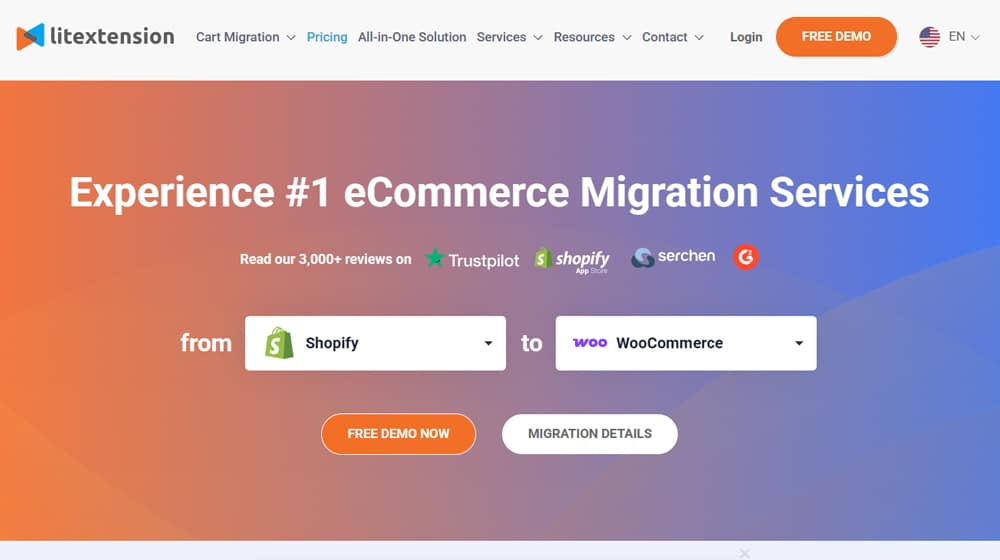
The benefit here is that you have an expert look over your site and figure out if you have any edge cases or potential hazards to navigate in the process that could get in the way of a smooth migration, and they can help prepare for the migration to go smoothly.
The downside is, as you might expect, the upsells. Since they're a service rather than a product, they benefit most from roping you into post-migration support. Some of you might find that valuable, others won't. I can't vouch for it since I haven't used it, but if you have, let me know!
Cart2Cart. This is one of the most robust data-mapping transfer services I've found that is still a product rather than a service. You connect your Shopify and WooCommerce sites, select what data you want to migrate from the dozens of categories, and let it run.
The downside is that a lot of their secondary services cost money, like preserving order IDs, moving blog posts, migrating SEO URL structures, and more. You can easily end up spending several hundred bucks, whereas a lot of these other options are under $75.
Migrate & Import Shopify to WooCommerce. This is similar to S2W, except it's a WooCommerce plugin instead of a WordPress plugin. Ideally, they'd both work the same, but having the direct-from-WooCommerce connection can eliminate one possible transitional hazard, and the price is only a bit more than the premium version of S2W at $80.
There are other plugins and options available as well, but these represent the kinds of products and services you'll see. If you have a recommendation (or if you've had a bad experience with one of these), feel free to mention that in the comments.
Step 3: Test and Finalize
Once your data is fully transferred, you'll need to do some testing and spot checks to make sure everything looks good. Run test transactions and make sure the store works. Check your blog posts and pages to make sure they're all visible and functional. Test forms and other submissions.
When you think everything is ready to go, you'll need to change where your domain points. If you own your domain through a registrar, it's as easy as editing the DNS location through the registrar. If you bought your domain through Shopify, you'll need to edit it through Shopify, following their instructions here.
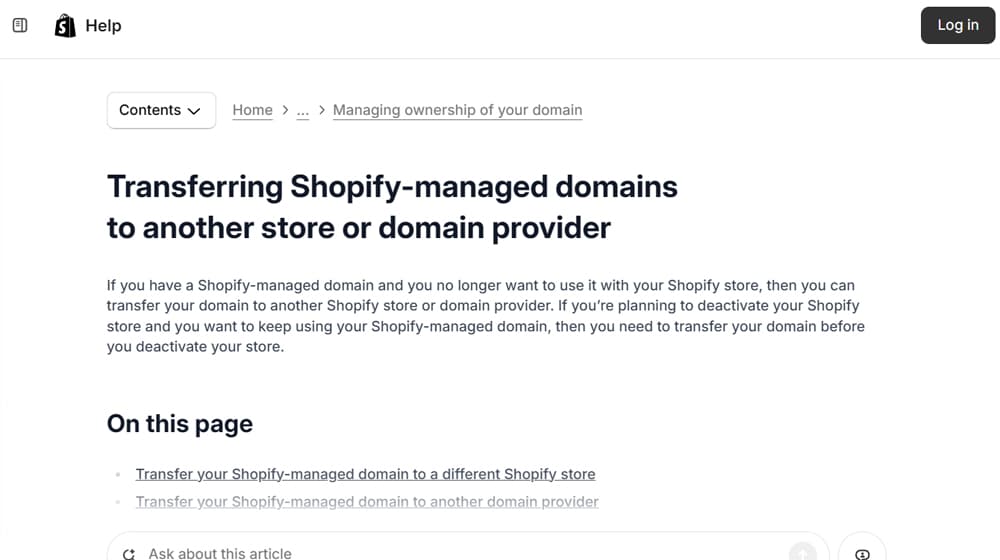
Note that if you used Cloudflare through Shopify, there can be caching and delays on refreshing this information.
With the domain shifted, you'll want to go through and check various links to make sure everything works. Remember that if any of your URL structures changed, you'll need to implement redirects so they resolve to the new URLs. Ideally, you won't have changed anything, but it can be painstaking to handle properly, so a lot of people let that slip. You can use a URL compare tool to help spot differences between your old and new page addresses.
I highly recommend not closing your Shopify store or account right away. You want the fallback in case the WordPress and WooCommerce installation is somehow critically flawed, and if you need to pull or reference any other data you forgot in the migration process. It's also worth knowing how much server memory WooCommerce needs to make sure your new setup is properly resourced before you cut over entirely.
Once your site has been migrated for a month or two, it's probably stable, and you can finally ditch the Shopify account. Enjoy your newly customizable storefront, and get to work on growing beyond the limitations of Shopify!

Written by James Parsons
Hi, I'm James Parsons! I founded Content Powered, a content marketing agency where I partner with businesses to help them grow through strategic content. With nearly twenty years of SEO and content marketing experience, I've had the joy of helping companies connect with their audiences in meaningful ways. I started my journey by building and growing several successful eCommerce companies solely through content marketing, and I love to share what I've learned along the way. You'll find my thoughts and insights in publications like Search Engine Watch, Search Engine Journal, Forbes, Entrepreneur, and Inc, among others. I've been fortunate to work with wonderful clients ranging from growing businesses to Fortune 500 companies like eBay and Expedia, and helping them shape their content strategies. My focus is on creating optimized content that resonates and converts. I'd love to connect – the best way to contact me is by scheduling a call or by email.





Comments