

How Much Server Memory Does WooCommerce Need?
Written by 
WordPress is very powerful in part because of the vast array of plugins and external features you can add to it. A common, accessible, extensible platform to use to build a website is an incredibly useful tool for building websites and online stores.
All of that does come with a price, though. WordPress's near-infinite configurability means it's easy to run into conflicts and bugs no one else has seen before. It can be hard to find which settings menu in which plugin is the one to control some element you want to change.
One of the bigger issues, though, is the resources it takes to run the website on a web server. WordPress is built for functionality first, and performance second. It's not a complete wreck (if it were, no one would use it), but a default, out-of-the-box WordPress installation might not score all that high on the page speed analysis tools.
If you're aiming for cheap, low-end web hosting, you might also find your site can experience problems as it runs out of resources. This is doubly true when you're using fairly resource-intensive plugins like WooCommerce, which is the one I specifically wanted to talk about today.
So, how much server memory and other specs do you need to run WooCommerce effectively? Why does it eat up so much memory? And what can you do to cut back on the memory it uses? Let's dig in.
Fair warning: this is a middle-ground post in terms of technical discussion. I get technical here and there, but I also gloss over or use vague descriptors for some aspects, since I'm still writing largely for a layperson who isn't used to digging around in the guts of code and servers. Let me know if you need clarification on anything, though!
What Tech Specs Does WooCommerce Need?
Most good pieces of software have a set of technical specs somewhere with recommendations on the minimum hardware necessary to run the program. WooCommerce has some of that information, though you might find it unhelpful.
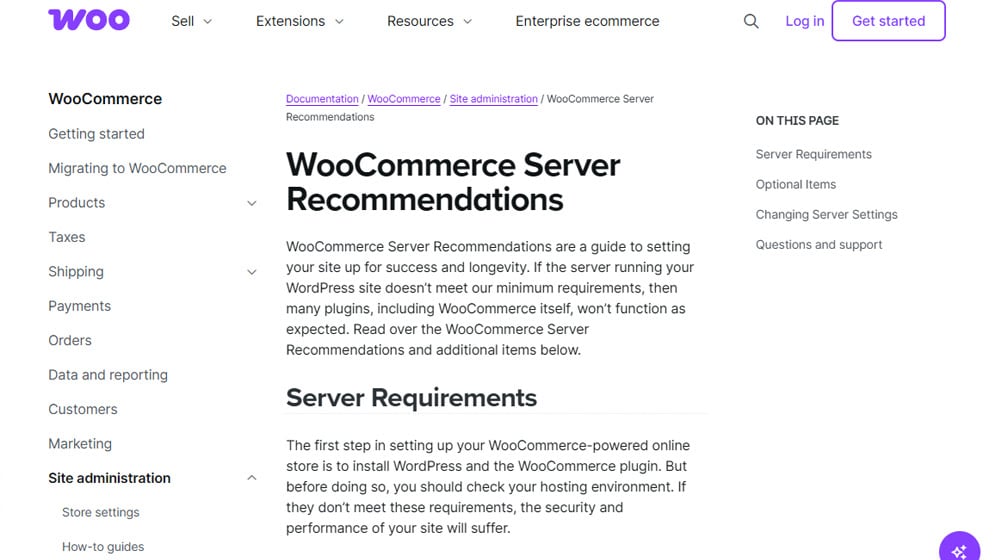
Here's what they say you need:
- The most recent version of WordPress.
- PHP version 8.3 or higher.
- MySQL version 8.0 or higher, or MariaDB version 10.6 or higher.
- Support for HTTPS.
- A WordPress memory limit of 256 MB or higher.
Only one of these is related to the hardware of your servers, and it's the memory limit. The rest is all code, and pretty much any modern website or site you're setting up now will handle it. You'd have to go out of your way to get a setup with older versions of PHP and MySQL; it's really information meant for people with old sites looking to expand into using WooCommerce.
256 MB doesn't seem like much memory, and that's because it's not. But, it's also not quite representative, because the memory limit is not the memory the site needs to function.
WordPress, out of the box, requires somewhere in the 512 MB of RAM range. Adding other plugins and features will increase that requirement. They also recommend having at least 2 GB for a recommended installation, and up to 4 GB for a high-performance site.
You're generally going to be fine with even cheap WordPress-focused web hosting. Cheap WordPress-focused plans (the ones that cost you under $5 a month) tend to give you around 1 GB of RAM for your site. Higher-tier plans from those same companies often offer 2-3 GB instead. Some offer even more; Kinsta, for example, sets you at 8 GB, with options to upgrade.
A well-managed WordPress site should never need this much RAM. Having that much RAM is for scripts doing heavy lifting, AI-based nonsense, and poorly optimized or buggy code with memory leaks. Running out of RAM often means there's a problem somewhere, so a high cap can even hide problems from you until they're worse to deal with.
There's a detail I intentionally overlooked, though. You'll note that the WooCommerce specs listed above say "A WordPress memory limit" and not "server memory" or something similar.
This is because WordPress has built-in limits on how much it will allow parts of itself to use. This is the WordPress memory limit. This is essentially a cap on how much memory any given PHP script can use before it's cut off. It helps avoid having a badly-coded site eat up all the resources on a web server and hurt not just the site but anything else hosted on that same server.
The WordPress memory limit can be set in the wp-config file, under WP_MEMORY_LIMIT. By default, it's set to just 40 MB on a single site, and 64 MB for a multisite installation. WooCommerce wants at least 256, though, so this attribute will need to be changed.
The good news is, you don't need to do that manually; setting the configuration is part of the WooCommerce installer. If it doesn't work, or if your site doesn't have access to make that change because of how your hosting is set up, it can be changed through the php.ini file or the .htaccess file, or you can contact your web host directly, and they can do it for you. WooCommerce provides instructions on how for all of those methods here.
WooCommerce doesn't actually tell you how much server RAM you'll need. But if you've tried to set it up yourself, or you've read social media posts about it, you'll have probably seen frequent complaints about running into memory limits a lot. Larger stores and more popular sites may need 2 GB at a baseline, and 4 GB for a more ideal, better-performing site. That 8 GB package from Kinsta is a lot less high-end when you look at it from that point of view.
What About Storage Space?
When talking about memory, non-tech people can get confused sometimes, since RAM (random access memory) and storage (hard drives, SSDs, M.2s) are both kinds of memory in the non-technical sense. People who don't know their way around computers might conflate the two.
Storage space is a different consideration. But storage space is also pretty cheap these days. It's very rarely going to be the limiting factor on your site's performance. A cheap plan from WordPress itself gives you 50 GB, the lowest-tier plan from Hostinger gives you 20 GB, and the low-tier plan from GoDaddy is 10 GB.
Meanwhile, a small/new WordPress site won't need more than 1 GB, a larger storefront can run fine on 5 GB, and very large storefronts might hit the point where they need 20 GB.
Broadly speaking, today's limitation is more about the kind of storage than the amount, since you can increase the amount pretty easily, and decrease how much you need even more easily.
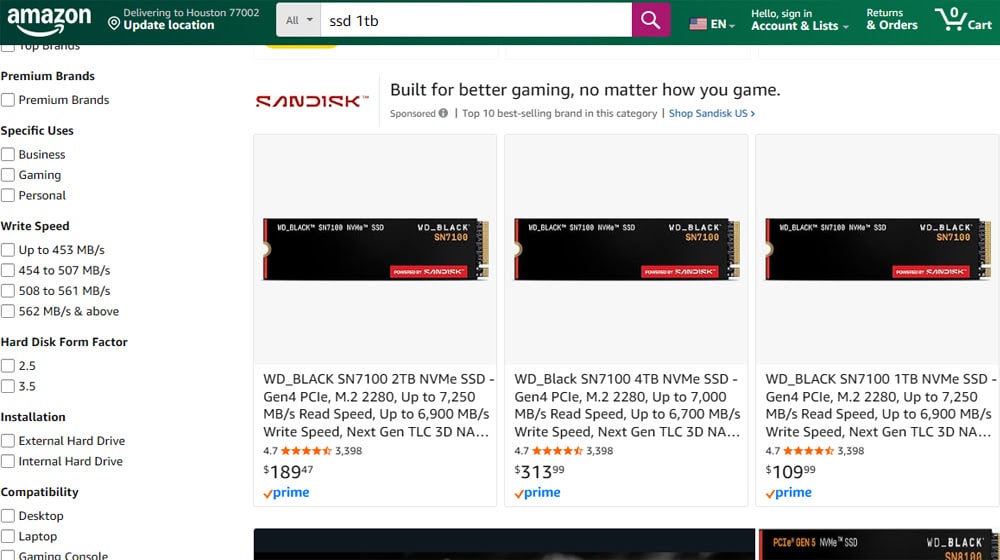
There are three general kinds of storage drives today.
- HDD. These are your classic spinning platters of magnetic storage. They're relatively slow and can fail because they have multiple mechanical parts that need to function properly. But, they're also extremely cheap. They're good for static storage and rarely-accessed data.
- SSD. Solid-state drives are more like RAM, but they don't get wiped when the power is turned off. They're much faster to read and write to, but a bit more expensive and lower in capacity for the price.
- NVMe. These are solid-state drives using the PCIe interface to plug directly into a motherboard for extremely fast read-write speeds. But, they're a bit smaller and more expensive.
For a WooCommerce site, you're going to want to aim for SSDs at a minimum, and around 10 GB of storage space to be comfortable. You'll probably run up against RAM or CPU issues before you run low on storage space unless you're paying zero attention to that storage space, and you can instantly drop a ton of storage needs by compressing images or using a caching plugin.
Since RAM is more likely to be your issue with WooCommerce, it's what I'm focused on talking about today.
Why Does WooCommerce Need a Lot of Server Memory?
There are a few possible answers to this question.
The first and most obvious is just that running a store is complex! You have to be able to handle a customer running searches, browsing products, and viewing item details throughout their shopping journey.
Every action they take executes scripts and sends calls to the server and database to pull data about your products in your catalog. Each individual one of those scripts has to consume some RAM to function, and less well-optimized scripts (or messier databases) can make it take more and longer to execute.
Now multiply that by every customer on your site, and by how large your catalog is. A new site with half a dozen products that gets two or three customers at any given time is going to have pretty low requirements. A site with a product catalog including 100 products, with 10,000 simultaneous visitors, is going to chew through those resources.
In the same way you wouldn't try to have Taylor Swift perform a show in a dive bar due to capacity and access issues, you aren't going to have a major storefront on a small-resource server.
The second answer is that the devs working on WooCommerce are… let's say more interested in cool features than in performance. It's easy to do, don't get me wrong. Adding cool new features and getting them to work feels very satisfying. Taking existing features and making them work incrementally better? A lot fewer people find that satisfying.
They do have some developers on their team who care about optimization, and they do include optimization updates in their process. It's just not a platform designed for speed first. There's nothing wrong with that, but it's a concern sometimes when things start to get a bit bloated before an optimization pass is made.
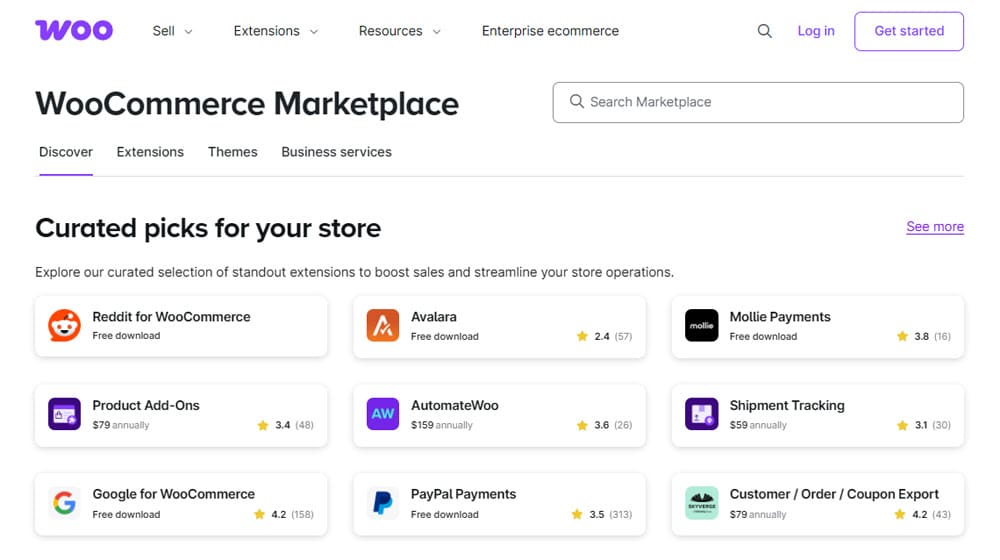
The third answer is that WooCommerce itself also has plugins and extensions, and those can also be made by people who aren't terribly concerned with performance over functionality. If you're using any plugins for your plugins, that's going to put even more load on your server.
There's nothing wrong with trading a little speed or resources for features, but you need to be aware that, especially in e-commerce, a delay of more than a second when pulling up product pages is going to reduce your conversion rates.
So, what can you do to get the most out of WooCommerce? Basically, you can take one of two perspectives on it, or a combination of both.
Future-Proofing with Higher Server Specs for a WooCommerce Site
The first and easiest option you have is to just throw a bit of money at the problem and let it roll.
When you're setting up a server or shopping for hosting for a WordPress/WooCommerce store, you'll have a few pieces of data to comb through and decide how to optimize. Lower numbers will cost less but perform worse. Higher numbers give you more leeway and better performance, but cost more.
Storage space. I already mentioned this above, but a storefront with a hundred or so products shouldn't necessarily be using more than 10 GB of storage. Even so, it's still easy and cheap to find hosting that gives you 50 GB or more, so you have a lot of runway on this one if you want it.
Storage type. As mentioned, you want a minimum of SSD for your storage. NVMe is more common than it used to be, but it's still a bit more expensive than SSDs, though the upgraded performance can be noticeable.
CPUs. CPUs, or CPU cores, are another technological factor I haven't mentioned in this post. It's actually often as much of a bottleneck as RAM, but since it's not memory, it's not the focus of today's post. You're going to want hosting with at least 2-4 cores dedicated to your site, with 8-16 as an ideal for long-term growth.
Memory or RAM. As I've mentioned, it's easy to get 1-2 GB of RAM in a server, and it's not too difficult to get hosting with as much as 8 GB. However, for a long runway and future-proofing, a server with 16 GB might be better. These tend to be more easily available in high-tier plans (for example, Bluehost's top-level WordPress hosting offers 16 GB) or for non-WordPress hosting you configure yourself.
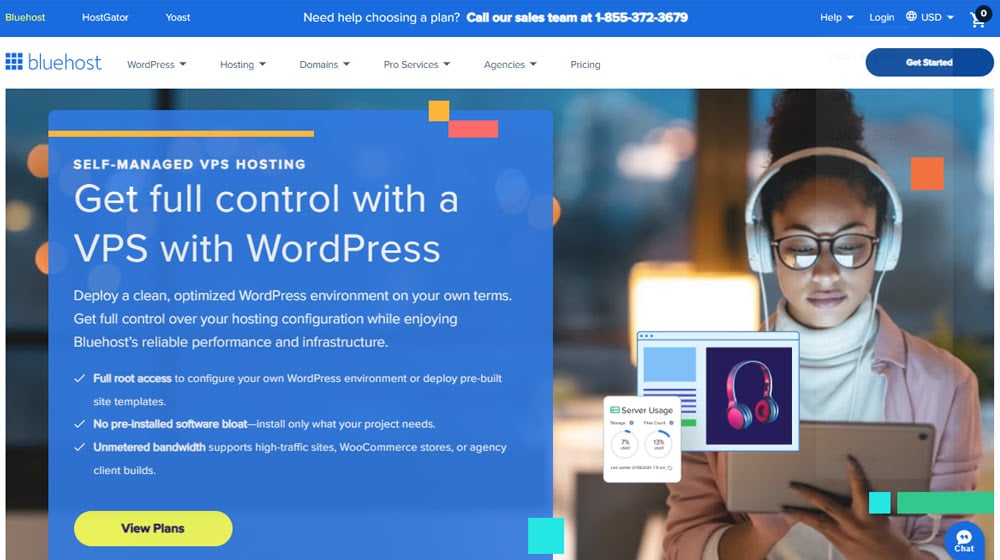
There's one more factor I haven't mentioned, but can be important: bandwidth. In the old days of the internet, bandwidth was a very real concern. Web hosts would have caps on how much data transfer they would allow in a given month, and it wasn't uncommon for websites to go down or into maintenance mode near the end of a month if they were particularly popular.
These days, bandwidth is very rarely the limiting factor, though some of the cheapest web hosts do still limit it, either by charging you more if you go over the cap or by cutting you off. Most web hosts don't meter bandwidth, though, or set extremely high caps. Definitely check to make sure, though; the last thing you need is a surprise bill for hundreds of dollars of usage because you have a viral product.
Another potential consideration is the type of server. There are three to choose from:
- Shared. Shared hosting puts you and other websites on the same machine, sharing the same pool of resources. It's very cheap, but it's also a security vulnerability (if someone compromises a site on your machine and gains root access, they can access your site too). I pretty much never recommend this.
- VPS. Virtual Private Servers are similar to shared servers, but with things like virtual environments to isolate you from others on the same server. Your resources are yours, and you generally aren't affected by the performance of other sites on the same box. This is probably the most common option, and it's easily scalable.
- Dedicated. A dedicated server is a box that is "yours" in the web host's data center. All the hardware is solely for your use. It's the most powerful, but also the most expensive. Usually, this is best for high-end and very popular sites, but it is overkill for anyone else.
I'd recommend a VPS, or managed WordPress/WooCommerce hosting, which is probably a VPS with limitations anyway.
Getting sufficient resources will future-proof your site against growth and surges or spikes in traffic that could otherwise slow you to a crawl. You might still need to do an optimization pass later on down the line, or bump up the specs as you grow, but it's not an annual occurrence like it is when you're trying to run at low specs.
The downside is, of course, the cost. Paying for resources you don't need now, but might in the future, is a lot of waste. That's your choice to make, but I prefer to work on optimizations myself.
How to Get Away with a Low-Memory Server for WooCommerce
What about the opposite end of the spectrum? How can you get away with the lowest possible specs?
I would say, don't. Aiming for low specs is fine; aiming for the lowest possible is going to cause you more problems than it's worth.

But, it's actually quite possible to get a WooCommerce site running while using barely more than 512 MB of RAM, under 5 GB of storage space, and just two cores of CPU. You just have to be ready to work for it.
Start in the right place.
Even though you're aiming for low-spec server hosting, you should still get the best you can.
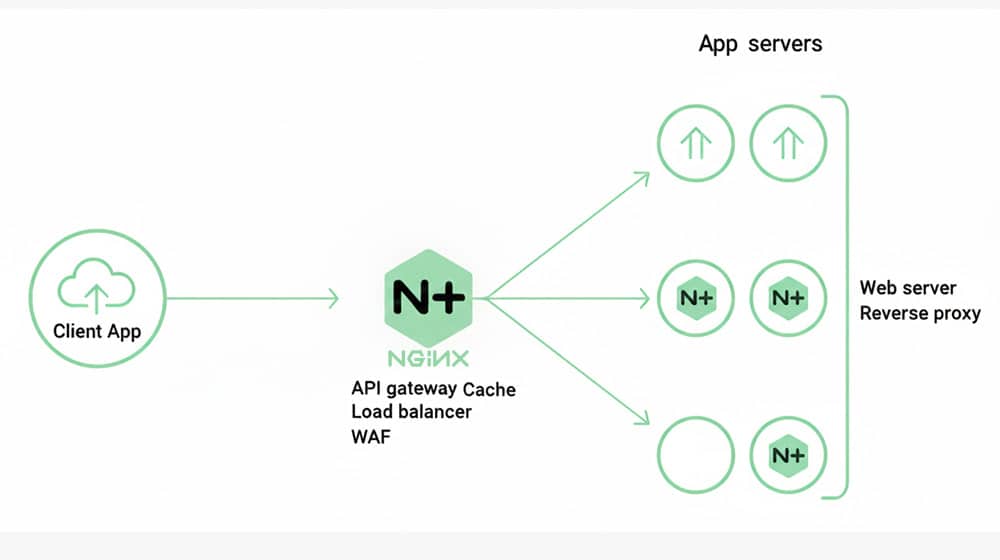
Use NGINX instead of Apache. It scales a little better and can handle concurrent connections with a lower server burden.
Make sure you're on an SSD or, better, NVMe drive.
Even if you're aiming for two CPU cores, get the best cores you can, performance-wise.
Get a reliable host. Not all hosts are great these days, and a lot are investing in a bunch of extraneous AI "helpers" that eat up resources for no value if you know what you're doing.
A VPS is good enough, and I recommend using generic hosting rather than WordPress/WooCommerce managed hosting. Dedicated hosting will give you more control over your configuration and back-end, which you'll need if you want to get in the weeds with individual settings.
Make heavy use of caching.
RAM usage in WooCommerce comes primarily from querying the database. Database queries require generating PHP and SQL scripts and executing them across database tables, compiling the results, and presenting them back, all in memory.
Caching is the solution to making dynamic things less dynamic. It's kind of like the difference between having a printout of a page in a book versus having to request a gig worker to type you up a copy real quick. You can use a caching system to effectively save the results of queries as static data, which can be served up much, much more quickly.
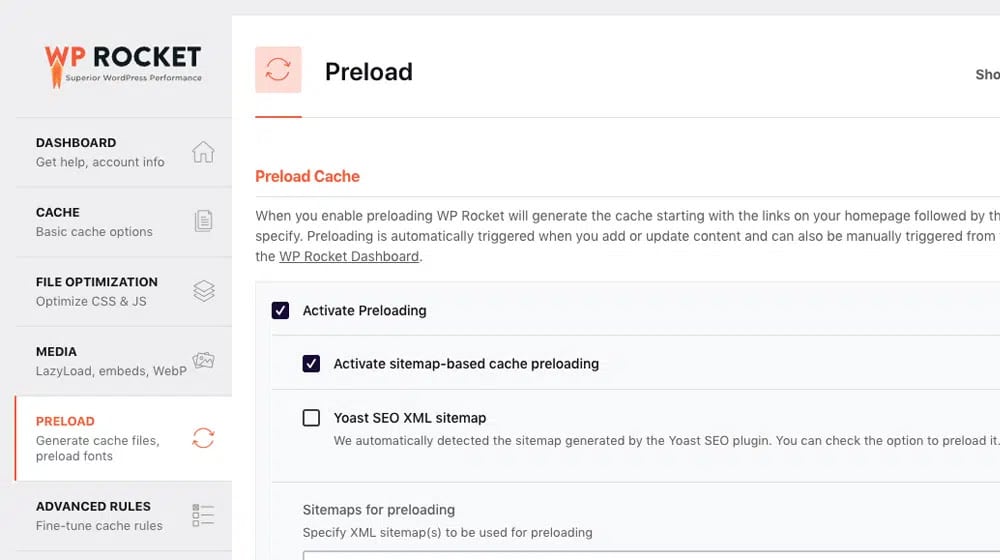
There are two kinds of caching to use on a WordPress site. The first is for WordPress caching. I love WPRocket for this. Just installing it can be an immediate bump in performance, and configuring it to work specifically for your needs is a huge boost.
The second is more specific caching for PHP scripts, called OPcache. This basically focused just on saving the results of PHP queries so they can be more easily displayed if someone else runs the same query, which will be very common with a storefront. This should be active by default in modern WordPress, fortunately.
Caching everything you can, in any way you can, will dramatically reduce the load placed on your server.
Compress everything you can compress.
Compression is the counterpart to caching for fast websites. Modern photos, like product photos, have a ton of excess data in them. They might be excessively huge for the size they display (especially on mobile), or they might include millions of barely different colors that the screen can't even display. These make the file larger, which means it takes longer to retrieve from the server and send to the user.
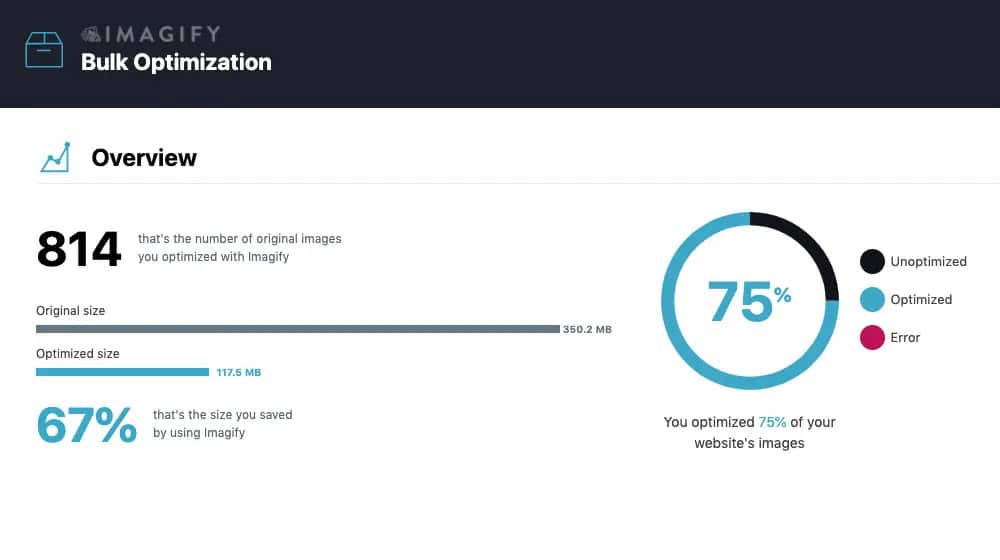
With compression, you can cut down on the size of an image by 90-95%. Critically, you can do this without affecting how the image looks. It's performance with no downside. There are a bunch of ways to do compression with images for your product photos and other image elements on your site.
You can also compress scripts, though the benefits are a little smaller.
Use a CDN for anything you can offload.
CDNs, or Content Delivery Networks, take advantage of things like caching to take the compressed images and cached page renders, and store them on server networks all around the world.
When customers visit your site, a good chunk of the data they retrieve comes from servers more local to them as part of the CDN, rather than more distance from them from your host's server. As an added bonus, this can also give you benefits like added DDoS protection and security to filter bots.

Cloudflare is the biggest CDN option out there and works well enough to give you a boost to WooCommerce performance.
Go through and tweak PHP and server settings.
There are a lot of tools, plugins, and settings you can optimize for speed on a low-spec machine.
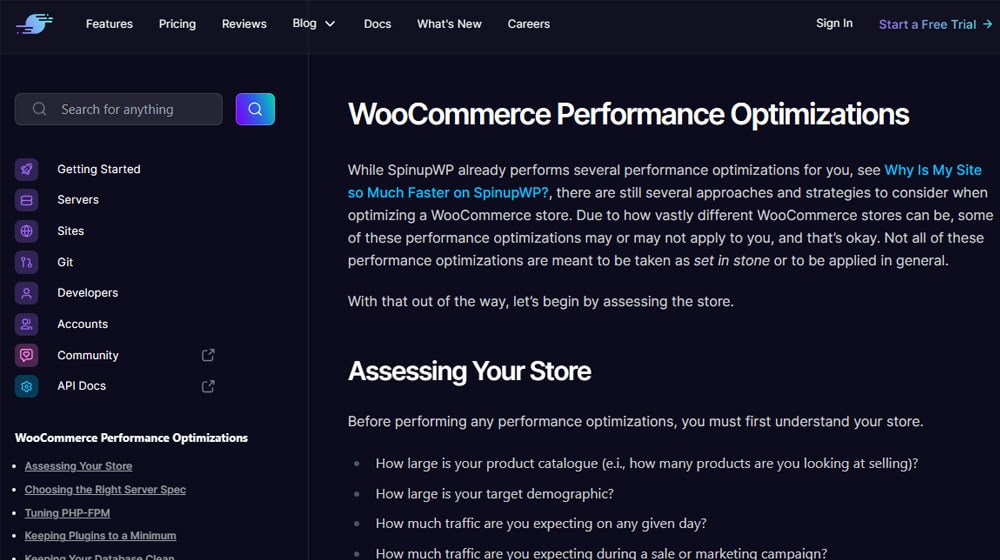
Make PHP tweaks. This page is an excellent resource that goes through dozens of individual PHP settings you can configure specifically to speed up and enhance the performance of WooCommerce.
Use PHP-FPM. The FastCGI Process Manager helps streamline how PGP is handled and can further reduce server load.
Clean up your database. WPRocket and WP-Optimize both have options to clean up orphaned data, transient data, revisions, and other unnecessary data that lingers in your database and makes queries take longer. Back up and clean up your databases on a regular basis, at least quarterly.
Running WooCommerce Effectively
Above, I mentioned the middle ground option. Go through and pick which of the optimizations you can comfortably implement, and aim for a step or two above the bare minimum server hardware. You don't need to go high-end with your hosting if you optimize, but you don't need to optimize all the way down to two cans and a string to be effective.
You may still find that you'll need to upgrade your hardware over time, but you'll have more leeway at lower expense levels than if you were to just throw resources at the problem every couple of years.

Written by James Parsons
Hi, I'm James Parsons! I founded Content Powered, a content marketing agency where I partner with businesses to help them grow through strategic content. With nearly twenty years of SEO and content marketing experience, I've had the joy of helping companies connect with their audiences in meaningful ways. I started my journey by building and growing several successful eCommerce companies solely through content marketing, and I love to share what I've learned along the way. You'll find my thoughts and insights in publications like Search Engine Watch, Search Engine Journal, Forbes, Entrepreneur, and Inc, among others. I've been fortunate to work with wonderful clients ranging from growing businesses to Fortune 500 companies like eBay and Expedia, and helping them shape their content strategies. My focus is on creating optimized content that resonates and converts. I'd love to connect – the best way to contact me is by scheduling a call or by email.







Comments