

Why GA4 Isn't Tracking Shopify Revenue Correctly (With Fix)
Written by 
Google's latest iteration of its website analytics suite, GA4, has a lot of advantages. Among those advantages is the ability to track data not just about website traffic and user demographics, but about other sources, including event-based data, revenue tracking, app data, and more.
The downside is that with more hooks in more places, it's easier for things to go wrong and data to get misattributed or even lost. Many people using Shopify are experiencing this themselves, as revenue numbers are misreported, often with a huge mismatch. Since Shopify has its own analytics and revenue tracking, it's easy to see when the numbers don't add up, and that's cause for concern.
The good news is, you can almost certainly fix the problem. But therein lies the challenge: figuring out what the problem is in the first place. Several different things can go wrong, so figuring out where the fault is can be a bit of trial-and-error.
Why Some Discrepancies Might Never Disappear
Before digging too deep, we need to talk a little about the reality of data tracking online.
As time passes and as more and more serious data breaches occur with major companies, people are getting more aware of their privacy online. That means more people are starting to use tools to help them stay safe, even if those tools don't protect them the way they think they do.
Ad blockers. While many ad blockers are just blocking ad injection scripts, others go for a more robust script-blocking solution, and block everything from ads to pop-up CTAs to live chat plugins to, yes, tracking scripts.
VPNs. VPNs aren't necessarily blocking your tracking scripts, but they can give you misattributed or strange data that you might filter because it doesn't seem right. A local business seeing a purchase attributed to someone across the country (or across the ocean) might filter it as fraudulent, when it's just traffic from a local user on a VPN.
Privacy Browsers. Some of the more modern web browsers, like Brave or the DuckDuckGo browser, include a lot of privacy-focused features, which often include script and tracker blocking by default, and may also include a VPN.
No matter how it's handled, the fact is, some traffic simply won't be tracked. Some might be completely invisible, some might be visible in Shopify but not in Google, and vice versa. There will always be some level of discrepancy, and as privacy gains traction as a hot issue, it's going to get more prominent.
Current estimates are somewhere around 15-20% of your data is likely to get lost due to blocking. Those numbers might also increase, though things like Chrome's removal of the previous ad-blocking API components have thrown a wrench into the works a little.
If you operate internationally or in Europe in general, you may also run into GDPR compliance. GDPR requires you to provide opt-outs for your tracking, and users who opt out can't be tracked properly for the deep attribution you might be used to.
That said, some issues and discrepancies between Shopify and Google Analytics can be fixed if you know what they are and where to look.
Simple Solutions First
Before digging into the more specific configurations and issues to look for, it's worth saying the obvious: the more you're adding and tracking, the more room there is for something to go wrong.
The best option you can have is just to remove anything that isn't the default Shopify integration for Google Analytics. It can feel restrictive at first, but if your added data was being tracked wrong, it wasn't really helping you in the first place, right?
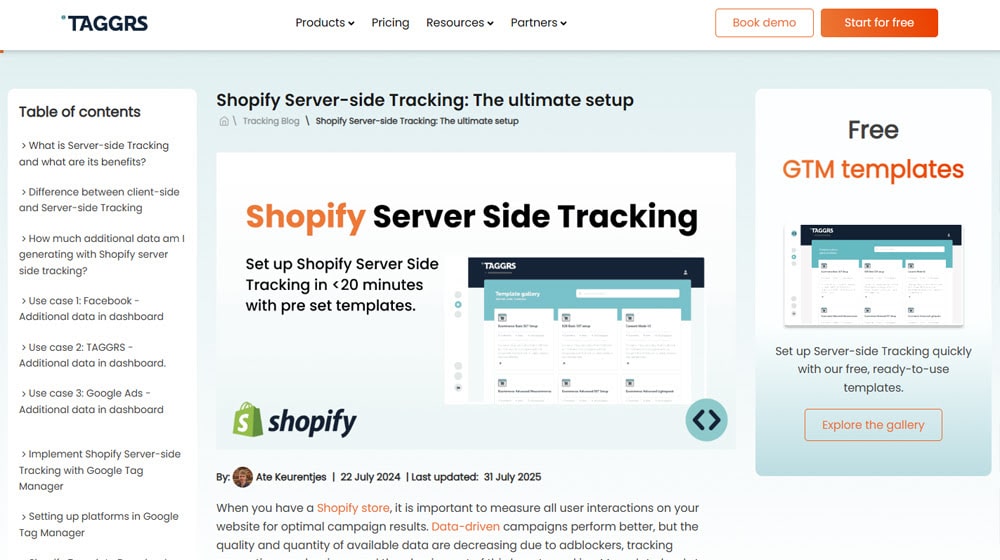
Shopify has done a lot of dev work and testing to make sure its tracking works well enough. It's especially valuable to implement server-side tracking rather than client-side tracking, for the best data tracking for the least effort.
From there, if you find certain data points you really needed but have lost, you can find ways to re-implement them. But sometimes it's worth auditing your overall analytics and tracking and just simplifying it.
So, if you can, simplify things. Go to the Shopify admin section, find Customer Events in the settings, and plug in your GA4 tracking ID. Then, let Shopify do the work for you. It really does work if you let it.
Check Your Time Zones
One possible issue is a time discrepancy. This is more likely to be the case if you're seeing overall aligned data, but the daily or hourly data doesn't match up. It happens because Google uses UTC in its analytics by default, while Shopify picks whatever your time zone is when you configure it for your store. This can lead to some sales being attributed to the wrong day if they happen close to midnight.
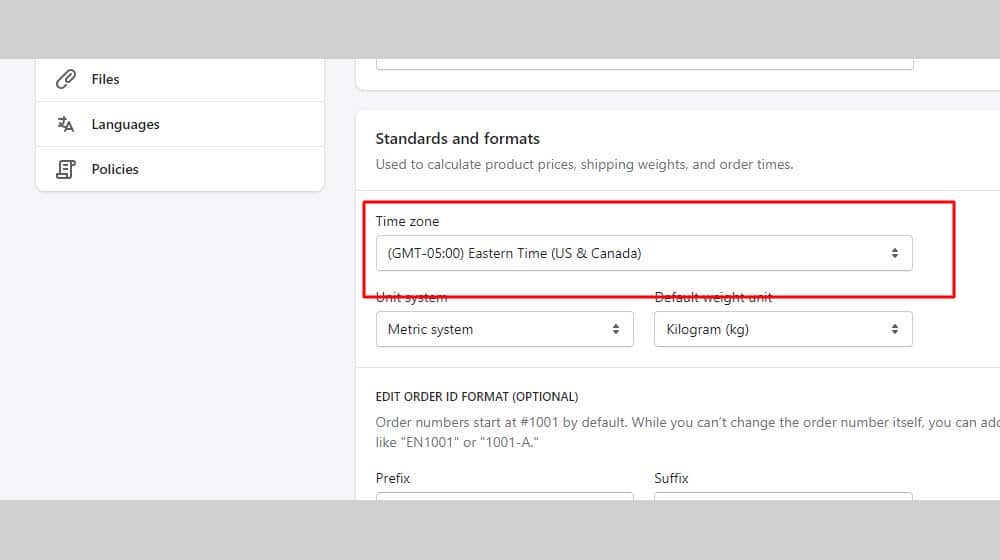
Fortunately, this is an easy fix.
- In Shopify, go to Settings -> General, find the Store Defaults section, and check what time zone is selected. If this is your time zone, keep it; if it's not, make sure it's your time zone.
- In Google Analytics, go to the Property Settings menu and find the Time Zone setting. Change this to match the time zone of your Shopify store.
One bonus to this is that the data isn't missing, so changing the time attribution will better align the data. Why is this important?
Google Analytics can only harvest data it's given, so if it hasn't been tracking data in the past, you can't recover it. You can only start tracking better data moving forward.
Some of the changes you might have to make to align your data may require new data moving forward, so your historic metrics will always be skewed. Make sure to keep a note of when you make these changes for future reporting purposes.
One other note about timing, here: Google Analytics is often on a bit of a delay. If you're trying to use real-time data, hourly reporting, or other rapid reflections of activity, it might not work. Google says to leave 48 hours for everything to be fully reported, and there's not really a way to speed that up. It can be worth checking to see if the data is more accurate a few days after the fact.
Verify that Google Analytics is On Every Page
A common problem, especially if you're using the Google Tag Manager, or if you're using a bunch of custom page builder pages and other non-Shopify-default pages, is that your tracking code might be scattershot.
Your data can get all messed up if:
- Some key pages don't have tracking data, and thus Google loses track of users when they enter those dead zones.
- Some key pages have multiple copies of the tracking code from different sources, double-tracking users when they land on those pages.
Don't forget that you need tracking on "thanks for your purchase" pages and other confirmation pages, so you have the "purchase complete" event sent to your analytics.
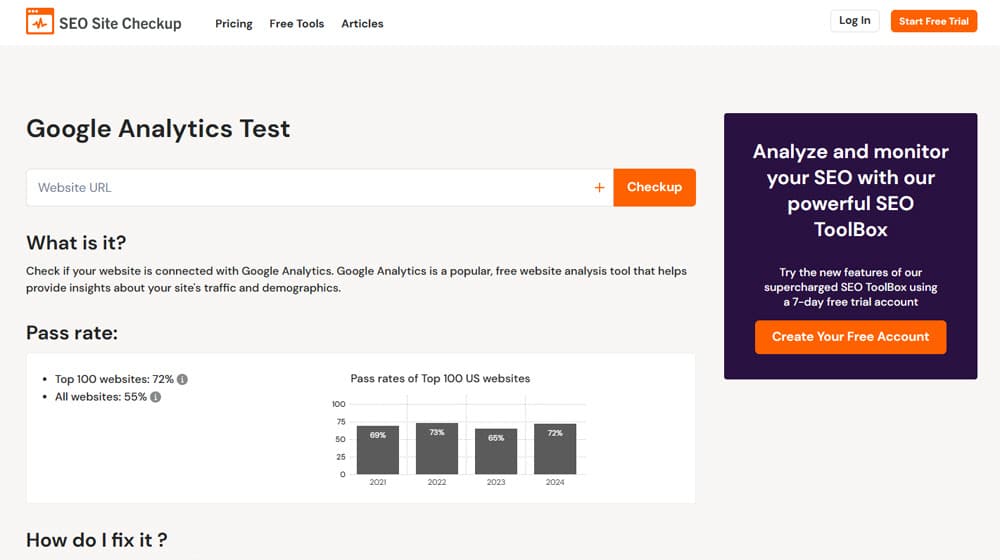
The good news is, there are simple tools like this that can check your pages to see if Google Analytics is installed. If it's missing anywhere, add it in.
Look for Session Tracking Discrepancies
Another possible problem is that Shopify and Google track individual user sessions differently. Shopify uses its own analytics model, which can retain user data for longer than Google Analytics typically follows them. Since GA4 sessions are based on user interaction, you can "lose" sessions from people who take breaks.
For example, if a user clicks to open a product page you linked to from a blog post, but tabs back over to keep reading the blog post and forgets about the tab for a few hours, that session will expire in Google. Shopify, meanwhile, can keep track of it.
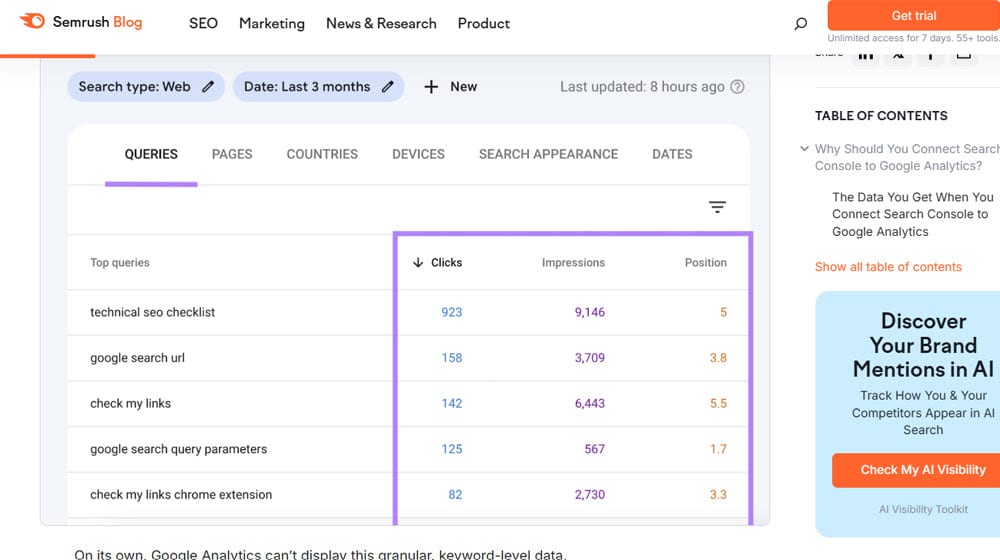
So, if your revenue numbers are mostly accurate but your session numbers are wildly different, with Google tracking more, it's likely that this is the cause.
Sadly, this isn't really something you can fix without pseudo-exploits like auto-refreshing pages that keep the user "present" before their session times out, and that can also skew your data.
Validate or Reinstall Google Analytics
One common reason that Shopify isn't tracking your data correctly, especially if you have an older store, is that you're using the wrong version of Google Analytics. Google updates and iterates on its tracking regularly, and if you haven't updated along with it, you'll fall out of sync.
First, check your Shopify integration and see what your Google tracking ID looks like. If it's prefaced by "UA" and then a bunch of numbers, you're on the outdated Universal Analytics, and it's probably pretty broken at this point since Google stopped supporting it in 2023. If it's a G followed by numbers, you're on a standard Google Analytics version.
This can happen especially if you're using third-party Shopify modules that themselves have fallen out of date. Things like page builders, custom upsell modules, custom checkout processes, and other apps can disrupt the flow and fail to pass data properly.
There are a few things to check here.
- Check if the app is outdated and needs to be updated. Even if this doesn't fix the problem, it's still good practice to keep your modules updated.
- Check if the app has its own way to pass data to Google Analytics, either by enabling a setting or by adding your tracking ID to the app itself.
- Check if the app's documentation indicates any specific process you need to follow to set up proper GA4 tracking.
Before panicking and removing your apps, though, make sure that the ones you have installed are updated and, if they have any options for tracking, you make sure they're enabled. Sometimes it might be as simple as a checkbox in an app you didn't realize existed, but that needs to be turned on to pass data properly. If not, though, you might have an app that just doesn't handle tracking right.
The downside here is that the best solution is to stop using those modules and make sure you're using Shopify's default Google Analytics integration. Depending on the app and your checkout process, this might require re-engineering your checkout process, which can be a pretty significant update to your site.
Still, using outdated modules isn't going to be doing you any favors in terms of security either. No matter how well-functioning an app is, if it's not supported, it's a risk to keep using it.
At the top, I mentioned GDPR privacy protection. These laws vary from place to place, but they generally all follow a simple formula: you have to inform users that you track data, you have to tell them what and why, and you have to allow them to opt out. You've definitely seen cookie consent banners popping up all over, and you might even use a cookie consent plugin yourself.
If a user opts out of tracking, well, that's a wrap; they won't be tracked. But you can still do some things to gather some data.
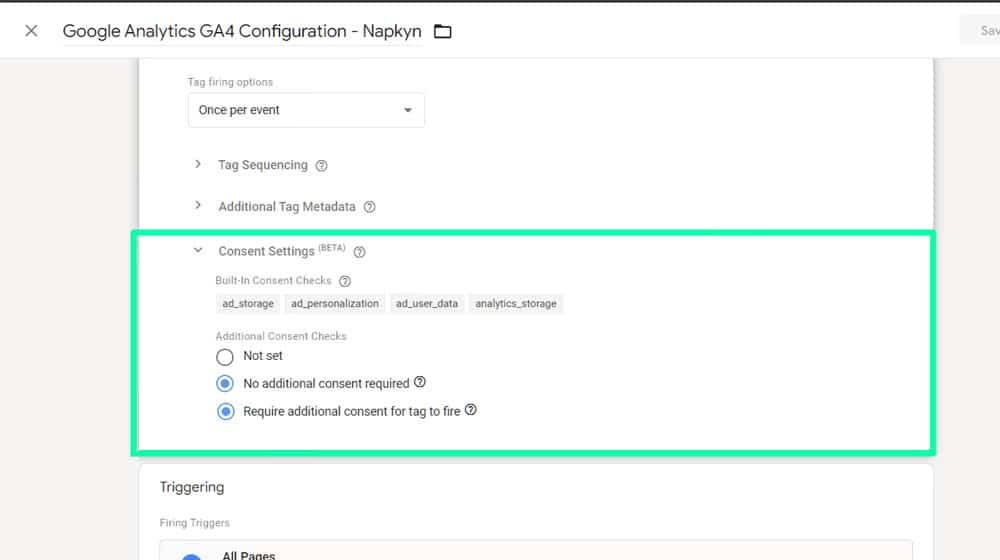
The best option is to enable Consent Mode in Google Analytics. Consent Mode requires you to use a Google-certified cookie consent manager, but when you do, it passes consent data and tracks what it can in a legal way. It's a lot better than no tracking at all, which is what you would normally get.
Now for a bit more technical digging. One possible issue you can run into is the specific event tags and parameters that pass data to Google.
- transaction_id is a unique-per-order identifier for each transaction.
- value is a simple numerical indicator of the value of the transaction, without symbols.
- currency is the ISO indicator of the specific currency the value uses.
You can also have additional data in the event schema for data like item_id, item_name, quantity, and more.
The more data you're trying to track, the more room for error there is. You have to find the sweet spot between robust information and too much tracking.
Another bit of data to check is the actual event for the purchase. In GA4, this has to be named "purchase" to track properly. If something in your flow is tracking it under another name, like "completed_purchase" or "successful_buy" or whatever, it's not going to be tracked properly. It's easy to go rename things to be more logical to you, but sometimes that breaks default assumptions.
All of this is data you can check in the Debug View. Run a test transaction and see what data is passed, and where gaps exist that shouldn't.
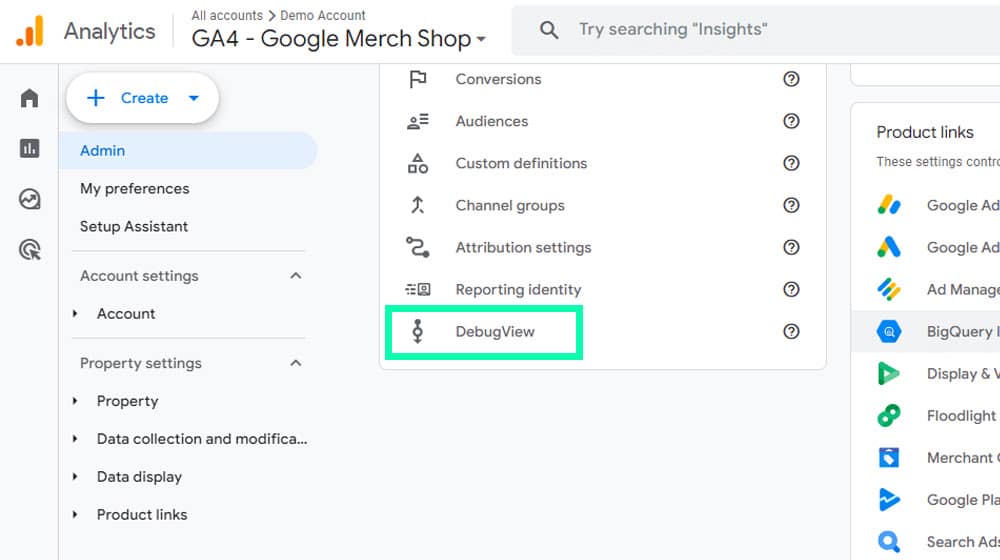
Cross-domain transactions can also lose data along the way. If you've ever tried to buy an item using a pay with PayPal option, you know it pops up their window and temporarily hijacks the transaction, right? The same goes for Buy Now Pay Later systems. Any of these can fail to forward the right data and may need to be specifically configured.
Why Not Just Use Shopify Analytics?
If there are all of these issues transferring data from Shopify to Google Analytics, why not just stick with the default native Shopify analytics?
Truthfully, you can.
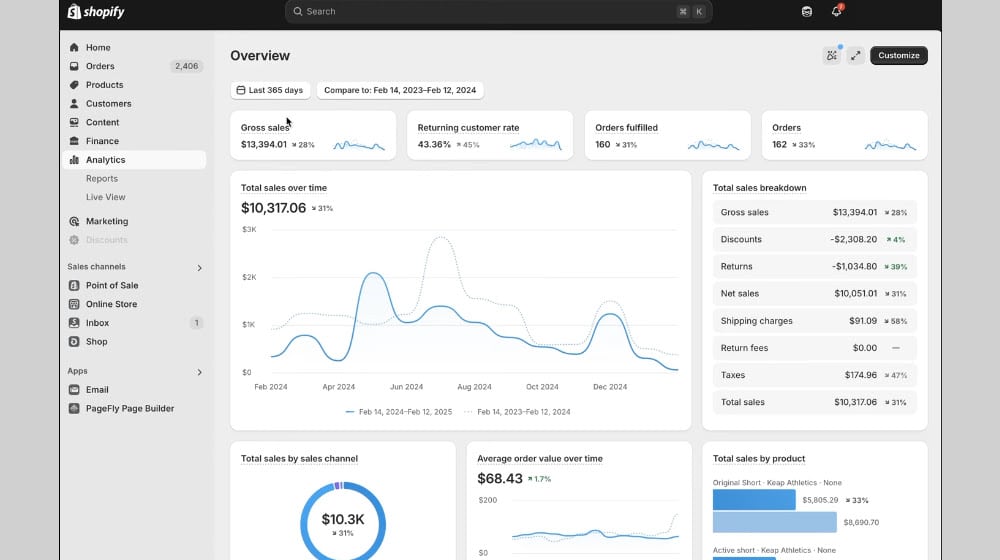
Google Analytics is very useful if you're running a large blog or site based on different kinds of content, and your store is secondary. It's also excellent if you're running Google Ads and want to follow them to sales with proper attribution.
If you aren't doing those things, and you're just running a Shopify store, and you really just need your direct ecommerce data, Shopify's native analytics are just fine.
Personally, I prefer Google Analytics as a central platform. The larger your business grows and the more channels you use, the better off you are forwarding data to Google instead of bouncing between a bunch of different dashboards.

Written by James Parsons
Hi, I'm James Parsons! I founded Content Powered, a content marketing agency where I partner with businesses to help them grow through strategic content. With nearly twenty years of SEO and content marketing experience, I've had the joy of helping companies connect with their audiences in meaningful ways. I started my journey by building and growing several successful eCommerce companies solely through content marketing, and I love to share what I've learned along the way. You'll find my thoughts and insights in publications like Search Engine Watch, Search Engine Journal, Forbes, Entrepreneur, and Inc, among others. I've been fortunate to work with wonderful clients ranging from growing businesses to Fortune 500 companies like eBay and Expedia, and helping them shape their content strategies. My focus is on creating optimized content that resonates and converts. I'd love to connect – the best way to contact me is by scheduling a call or by email.







Comments