

How to Get a Shopify Store Accepted in Google Shopping
Written by 

Any time you search for some kind of product or item on Google, you'll see a lot of results. With the normal organic SERPs, you see store locations, you have an option to refine your search, you have a handful of product listings, and so on. The real draw, though, is Google Shopping.
Key Takeaways
- Google Shopping receives nearly a billion queries daily, but store owners must actively sign up - it's not automatic like organic search.
- Since 2020, Google Shopping offers free listings, but you must manually opt into "Surfaces across Google" within Merchant Center.
- Shopify stores have an advantage via the Google & YouTube app, which automatically syncs and formats product catalog data for Google.
- Eligibility requires proper site policies, SSL, a return policy, and shipping settings - plus avoiding prohibited or unsupported product types.
- Optimize listings with concise terms, high-quality images without text overlays, and no promotional language to avoid removal.
The Value of Google Shopping
Google Shopping is a whole product search with listings from thousands of retailers of products, and functions the same way you would expect a product search on a platform like Amazon to function. There are product listings with photos, pricing information, reviews and star ratings, and even discount information and location flags for anything near the person searching.
It goes beyond the shopping tab, too. Product listings on the main search tab, in Google Images and Google Lens results, and even on Google Maps are all driven by the same source as Google Shopping.
This isn't a small audience, either. Google Shopping receives nearly a billion queries every single day.
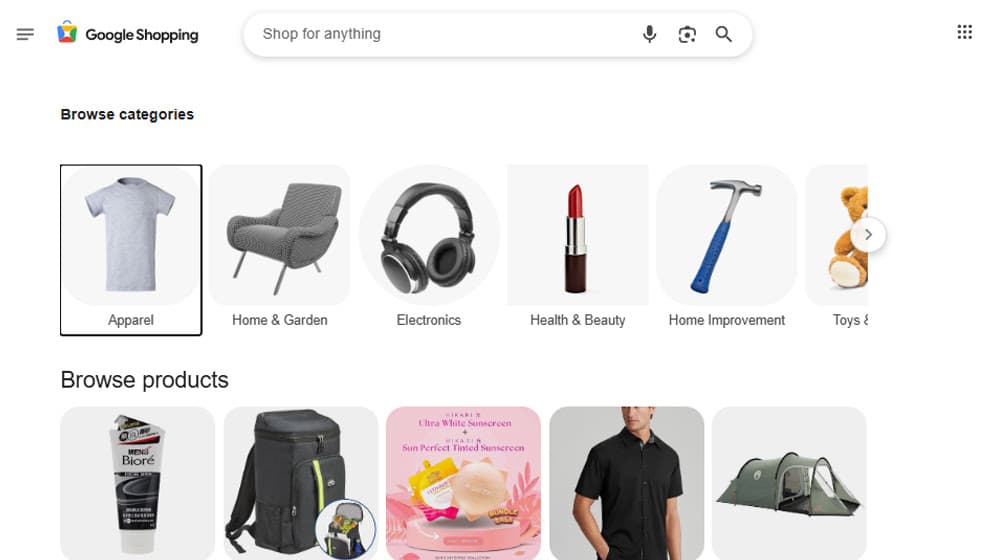
Many store owners never realize that they're not tapping into this audience.
There are basically two reasons for this.
The first is that you don't expect to have to do anything to be listed on Google. With Google's organic search, they come out and index your site, list and rank you and so on. While yes, it's a lot of work to optimize for SEO and know what you're doing to rank, you don't need to do anything just to be listed in Google search. You don't need to sign up for any specific accounts or go through a process to be added to Google's search index.
The second is that, until relatively recently, Google Shopping was paid-only. Well, I say "recently", but the update that allowed free listings was all the way back in 2020. Paid listings are still a key component of Google Shopping, but you don't have to spend money to be listed like you used to.
The fact is, though, you might assume that you're being listed in Google Shopping, but you aren't if you haven't taken the steps to do so.
Today, I wanted to walk through how to get a Shopify store added to Google Shopping. Fortunately, a lot of the work is generic enough that non-Shopify users can follow mostly the same process, but I'll be focusing on Shopify where the need for specifics arises. If you're considering a platform change, you might also want to read up on how to migrate your Shopify site to WooCommerce before making any decisions.
How to Get a Shopify Store Listed in Google Shopping
Getting your product catalog listed in Google Shopping is not an automatic process, though it is a free process. Here's how to do it.
Step 1: Confirm Your Eligibility
Before we get into any tangible steps, we need to make sure you're actually eligible to be listed on Google Shopping and in the Google Merchant Center ecosystem. You're able to make a Shopify store to sell products that are not eligible for Google Shopping, so some of you will be disqualified before we even begin.
First of all, you can't sell certain kinds of products. A lot of this is your typical restrictions:
- No counterfeit goods.
- No dangerous products like drugs, drug paraphernalia, weapons, explosives, tobacco, or fireworks.
- No "products that enable dishonest behavior" such as fake documents, hacking software, or tools to pass drug tests.
- No "inappropriate content", which includes anything that is shocking, promotes hate or discrimination, contains graphic images, cruelty to animals, blackmail, and the like.
You are allowed to list adult merchandise and suggestive content, but you have to comply with more stringent standards about targeting, listing anything explicit, and other rules. The same sort of rules exist for alcohol; you can list it, but the laws are tighter.
One of the big issues you might run into is unsupported products. There are certain kinds of products you can sell that Google won't list because they can't support the purchase. For the most part, this includes things like digital-only products or services. Only a limited selection of these kinds of products, like software, eBooks, music, and video games, is allowed.
You also have to comply with site and editorial requirements. If your site or your content isn't fit for listing, Google can remove you from the program, and you'll have wasted your time.
- No redirect URLs; if your URL in a product listing goes to example.com, the user clicking on it can't arrive at any other domain.
- Gimmicky or overly promotional text. Don't use all caps, don't do things like type "FR33" to get around word filters, and the like.
- No sites that don't use SSL, or at the very least that collect information irresponsibly.
Basically, Google has a set of policies to filter out scam sites and cheap, low-quality, trust-breaking sites that would make Google Shopping as a whole look worse if they were listed.
Finally, you need the right documentation and policies published on your site. You need a return policy document clearly linked next to your products. You need shipping settings available to attribute to product listings. You'll also need things like a privacy policy and other key documents on your site somewhere.
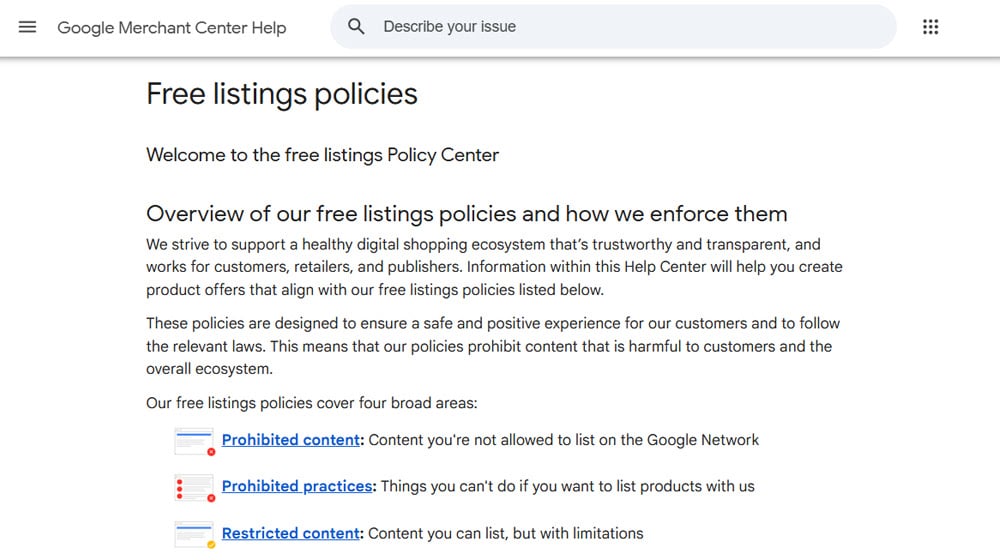
You can read the full list of restrictions and rules here, which will help you determine if you're barking up the wrong tree.
Step 2: Sign Up for Google Merchant Center
The next thing you need to do is sign up for a Google Merchant Center account. This is the key to the whole thing, and will serve as your control center for everything related to Google merchant, product, shopping, and related business listings.
Note that this is distinct from and not related to your Google Business Profile. Many people think that because they have a Business Profile, they have a Merchant Center, but that's not true at all.
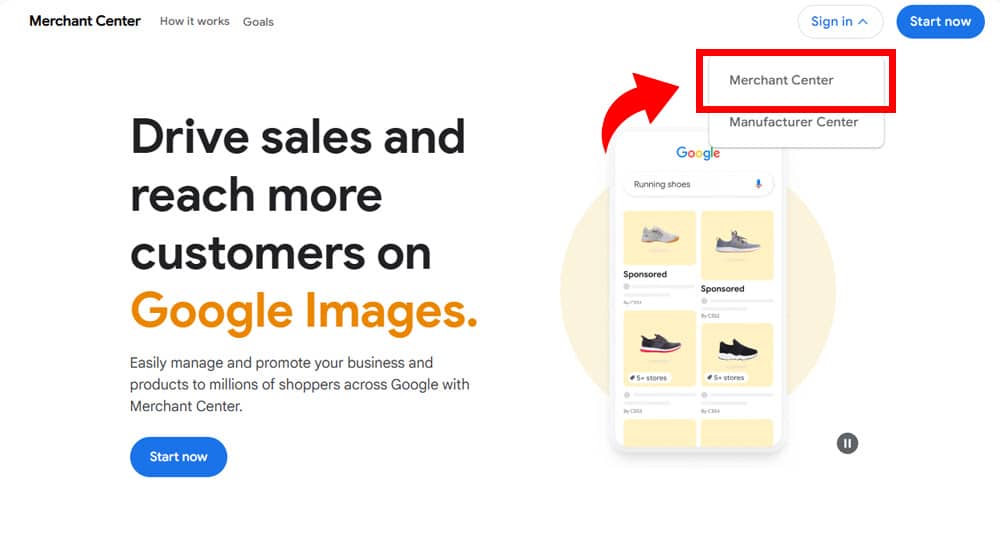
To sign up, click here. Unless your account signed up for Merchant Center a long time ago and you forgot, you will be confronted with a no access page. It will say something like "We're sorry. Unfortunately, your current account doesn't have access to any Merchant Center account."
Why do I have you click there instead of the sign-up form? Just to make sure you don't already have an account. That's because if you do already have an account and you make a second one, you can get in trouble with Google for having multiple accounts for the same business. That can get both of your accounts banned, and can affect other Google accounts, and is a huge hassle to sort out.
When you sign up, you'll have to go through a process of telling Google more about your business. The specific questions depend on your type of business, but they'll ask things like:
- Do you sell products online?
- Do you have a brick-and-mortar store?
- What is your business's name?
- What country is your business registered in?
All of this is basic information, which Google can use to filter you if you aren't eligible, and otherwise sets the stage for the kinds of information and listings they'll ask of you. For example, if you have a brick-and-mortar store location, they can ask for your address, but if you don't, they don't need it.
Step 3: Verify Your Business Site
Since we're talking about Shopify here, I'm assuming that you do not have a physical location (though you might) and that you sell products online through a digital storefront.
So, your next step is to verify your business with Google Merchant Center. If you've ever set up Google Search Console, you already know how to do this, and in fact, it might be even easier.
Basically, Google will give you some code or a file and tell you to put it on your site. Once you do, they will check it and associate your business site with your account. You can do this in a few different ways: adding some HTML to your Shopify homepage, adding a file to your domain's root directory, and so on.
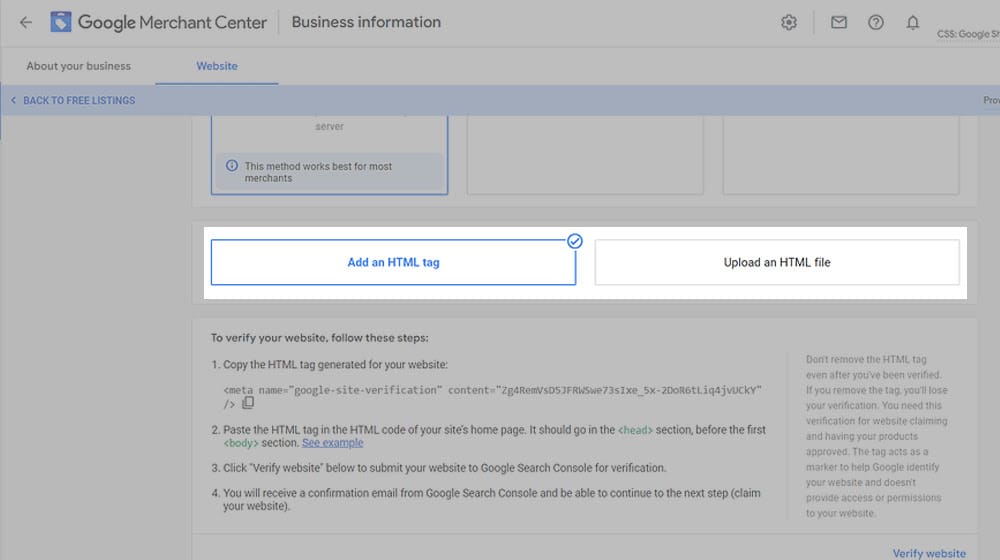
If you have already set up Google Analytics and it's tied to the same Google account you're using to set up your Google Merchant Account, you can just verify using that, as well. If you're having trouble with revenue data in your analytics setup, it's worth checking whether GA4 is tracking your Shopify revenue correctly.
Whichever option you choose, you need to do this verification to be able to continue.
Step 4: Install the Google App for Shopify
Non-Shopify stores are at a bit of a disadvantage here; they have to do a lot of work with data syncing and other details. Shopify stores have an app you can install directly from Google. It's called the Google & YouTube on Shopify app, and you can find it here.
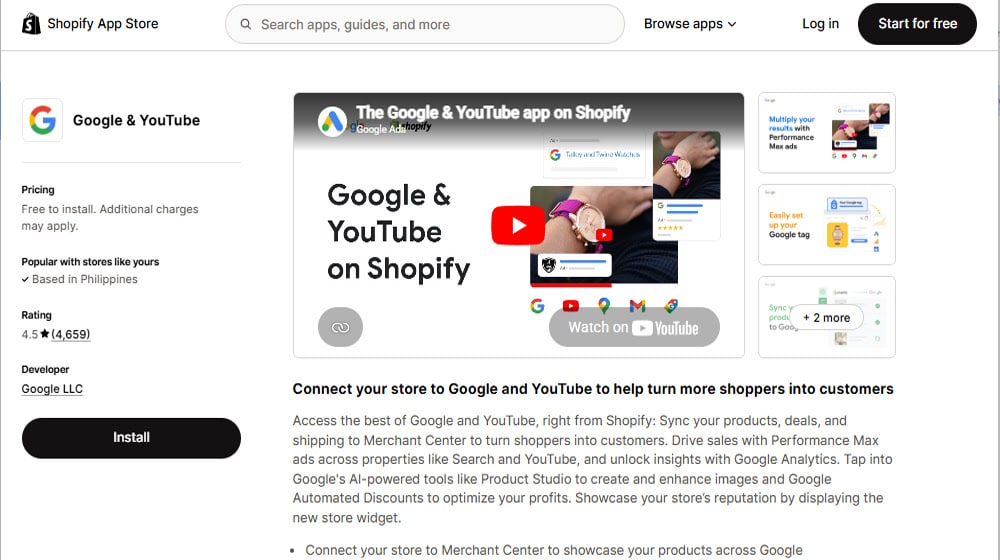
In fact, you might already have this if you've used Google services for other purposes, like connecting your store to YouTube videos or connecting to Google Analytics without a third-party app to do it.
Install the app just like you would any other Shopify app. When you open it, it will prompt you to connect with your Google Merchant Center account, so log in using your freshly verified account, and you'll have the connection ready to go.
Step 5: Fill Out and Verify Data
Normally, this would be where you give Google a feed of your product data. Things like XML inventories, Google Sheets product feeds, or a manual upload of products individually are all options.
With Shopify's app, though, all of your catalog information is already formatted the way Google knows how to parse, and is automatically given to them.
You may need to add other business information. If you do have a physical store, you'll need to add your business address and phone number, and get a call from Google to verify it. You'll need to set up shipping information as well, like mentioned in the first step. Shipping information includes your country, currency, estimated delivery times, and estimated shipping costs, all of which help users determine if shopping with you is a good deal.

You'll also want to set other business details, like your target marketing and your tax rate settings, as necessary. Google will walk you through all of this in the Merchant Center, so just follow the steps and fill out what they ask of you.
Over on the Shopify end of things, go into the Google & YouTube on Shopify app and skim your product data. Make sure it's all accurate and that you don't have weird issues with data formatting. Once you've checked it over, click the Sync Products button to send Google the feed of your product information.
Google will occasionally reject a feed, though this isn't common with Shopify feeds since they're formatted to give all of the appropriate information to Google. Usually, it's because there's a missing price, shipping info, or a product that they think violates their policies. Ideally, you won't have these issues, though.
Step 6: Verify Policies and Continue
The last step for setting up your Merchant Center account is just reading (or pretending to read, as we all do with most EULAs) the Google policies and terms, clicking the verify button, and completing the process.
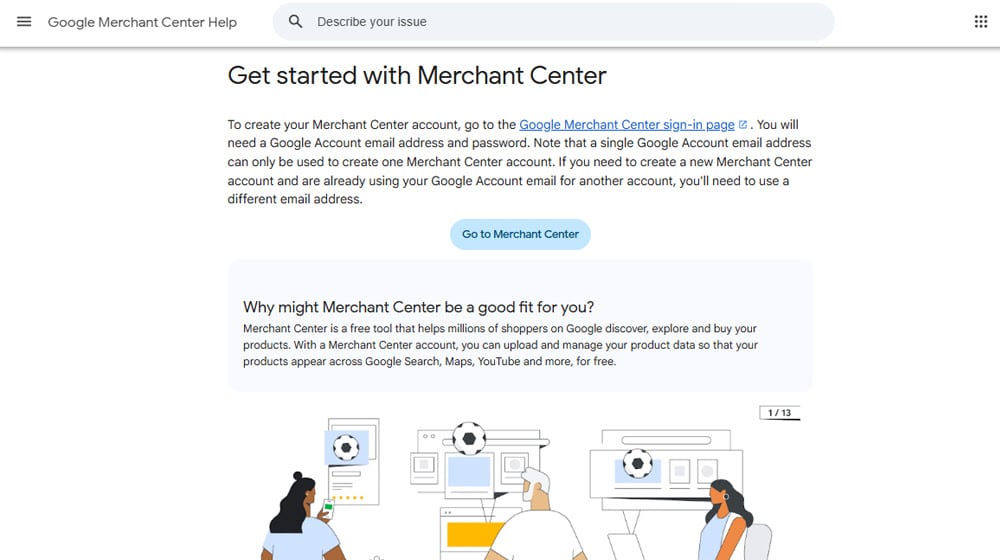
Once you do that, you'll be taken to the Merchant Center dashboard and can start configuring listings.
Step 7: Opt Into Free Product Listings
Google Shopping was, for a long time, designed around paid listings. It's still somewhat designed around paid listings, so you have to opt into having your products listed for free.

To do this, go to the Growth category and click on Manage Programs. One of the options here is "Surfaces across Google", which lists the various places your products can be displayed. Click on any you want to use, follow the process, and opt in.
Step 8: Wait
You're basically done at this point, but you have to wait for Google to review your product catalog. It usually takes a couple of days for them to go through and verify each product. The larger your catalog, the longer it will take. Some of our clients have had this take days or even weeks. It happens.
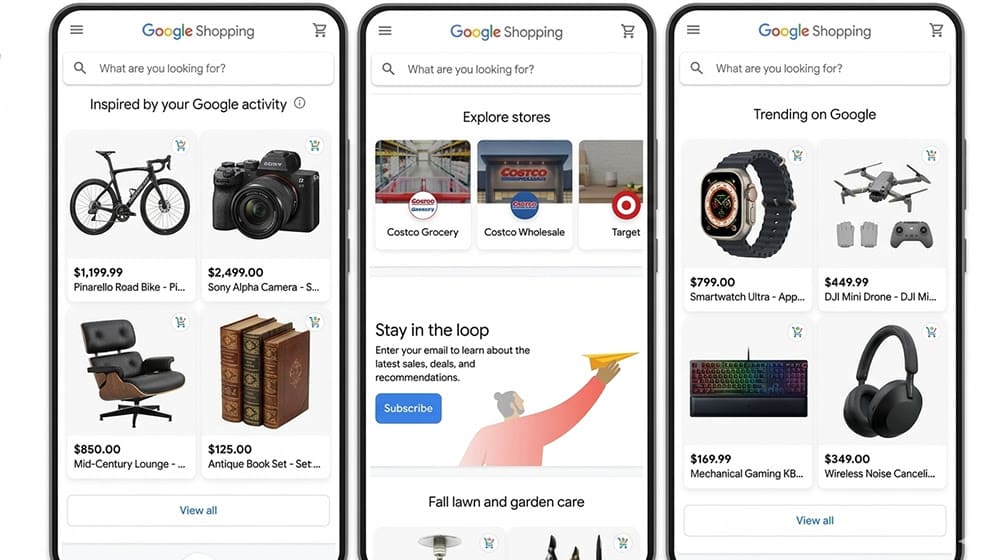
If they find an issue with any specific product, that product will show an error, and you'll be able to fix it. If they decide your whole catalog isn't eligible, you either have to figure out why and how to fix it, or decide Google Shopping isn't that worthwhile after all.
Step 9: Optimize Listings
Getting listed in Google Shopping is already a huge boon, but you can also do a lot to make your products look better in those listings.

Remember, you only have a few characters of space and really a single image to stand out.
- Use short terms when possible. Male/Female/Unisex rather than Ladies or Gender Neutral saves space.
- Use common terms instead of ranges. Newborn and Toddler instead of 0-3 months and 2 years, for example.
- Use common terms for the condition of used items.
- Use common terms for colors unless specifics are important.
At the same time, you need to avoid promotional language. Don't talk about how it's the best deal or how there are free add-ons in the listing. This can get your item removed from the Shopping lists and, if you do it too much, can get your account removed from the program. Trust me, it's not worth it - keep this text clean.
Similarly, use high-quality, high-resolution images of your products, and don't use overlays with text on them. Even if your product is on sale, adding a big "sale" badge to the image can get it removed from Google Shopping. Tools that can automatically generate alt text for your images can also help ensure your product images are properly optimized before you sync them.
Making Use of Google Shopping
When all is said and done, your main task is to keep the ball rolling. Watch your listings and track how they perform. Do split testing and optimize them for appearance.
When you add, remove, or change products in Shopify, the changes will be synced with Google Shopping through the Shopify app you're using, so you don't need to re-click the sync button every time.
This is also where you can use paid ads if you want. You can do this through Google Ads or through the Merchant Center, depending on the kinds of ads you want to run. That's a matter for a whole other post, though.

So, there you have it! Keep an eye on everything, make sure you deal with any rejections or inconsistencies ASAP, and you should stand to benefit significantly from Google Shopping, all for free.

Written by James Parsons
Hi, I'm James Parsons! I founded Content Powered, a content marketing agency where I partner with businesses to help them grow through strategic content. With nearly twenty years of SEO and content marketing experience, I've had the joy of helping companies connect with their audiences in meaningful ways. I started my journey by building and growing several successful eCommerce companies solely through content marketing, and I love to share what I've learned along the way. You'll find my thoughts and insights in publications like Search Engine Watch, Search Engine Journal, Forbes, Entrepreneur, and Inc, among others. I've been fortunate to work with wonderful clients ranging from growing businesses to Fortune 500 companies like eBay and Expedia, and helping them shape their content strategies. My focus is on creating optimized content that resonates and converts. I'd love to connect – the best way to contact me is by scheduling a call or by email.



Comments