
What's The Best Way to Track Content Updates in WordPress?
Written by 

There's a bit of push and pull with Google rankings these days.
On one hand, it's a known fact that Google likes fresh content. They've had an algorithm called QDF (Query Deserves Freshness) mixed into the core algorithm for decades. It's why trending topics and news coverage rank so well, at least for a time. It's also why, if two pieces of similar content on a subject are ranking, the more recently updated one tends to perform better.
On the other hand, Google also loves older, established content. We know that the average age of a page in the top search results is 2-3 years. New content doesn't rank as well as older content.
What this means is that you have to strike a balance. You need to produce new content (otherwise, how will you ever grow?), but you also need to keep older content, especially content that ranks, up to date.
Unfortunately, this can be a lot of work. Keeping track of keywords, content produced around those keywords, publication dates, and last updated dates ends up being a lot of busywork.
The good news is, there are some good ways to handle this more or less automatically. Exactly how you go about it depends on your preferences, so I'll talk about a few different options you can consider.
Key Takeaways
- Google values both fresh and established content, so balancing new posts with updating older ones is essential for rankings.
- Small content changes have minimal SEO impact; adding 31% or more content produces more meaningful ranking improvements.
- WordPress offers built-in revision tracking, but it's often disabled to save database space and lacks easy overview displays.
- Plugins like WP Activity Log and Simple History provide accessible change tracking, while VersionPress suits developers familiar with Git.
- A DIY spreadsheet system tracking URLs, keywords, and saved old versions offers a flexible, customizable alternative to plugins.
Why and How to Update Content
First, let's talk a little about why you want to update content, how you should update content, how often you should update content, and how to tell what content needs to be updated.
Why do you need to update your content?
I've already covered this one in part; Google likes when older content is well-maintained and kept up to date. That's not the only reason to update your content, though.
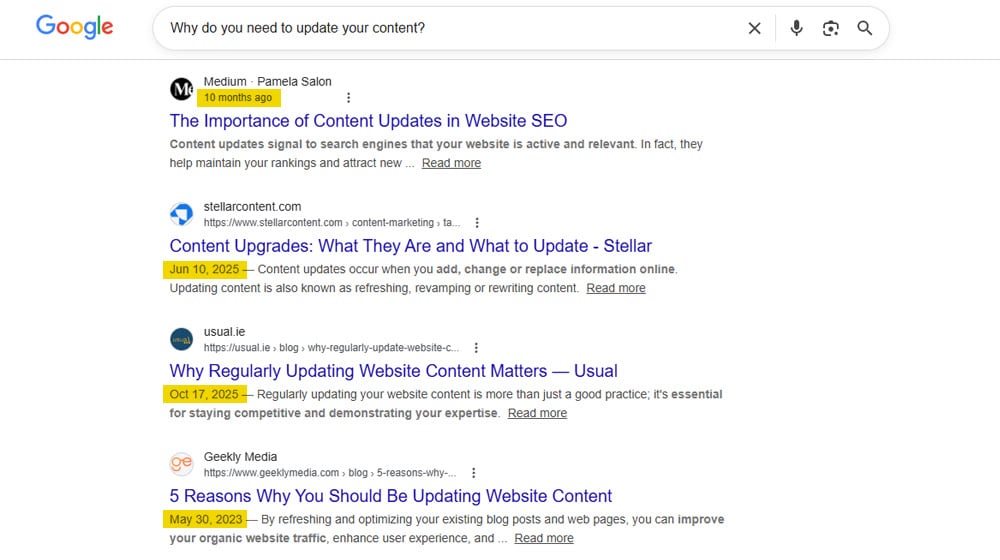
Another big reason is user behavior. Google shows dates in the SERPs snippets, and those dates are usually the most recent updates. This allows users to judge when information may be most relevant to them, and usually, that means the most recent information. So, updating content draws in people who judge based on the date before they even click through.
It's also good for the value of the content. Topics change over time. As new information develops and older information falls out of relevance, the set of keywords and phrases that associate with a topic can shift. By keeping your content up to date, you can continue to follow relevant keywords and discussion topics to stay on top of rankings.
It's also important to keep information and conclusions updated. If the underlying data changes, it can change your conclusions, and both should be updated. If the underlying data doesn't change, it's still worth reaffirming that fact to an audience.
Even things like the memes, jokes, and references you make can leave a piece feeling dated, so keeping on top of the language you use helps ensure your content matches the style your brand is trying to convey.
How do you update older content?
The mechanics of updating old content are fairly simple, but there are a lot of specific details you might consider while you do so.
I'm going to be brief here, but if you want a more complete rundown, I've covered how to update old posts in greater detail here.
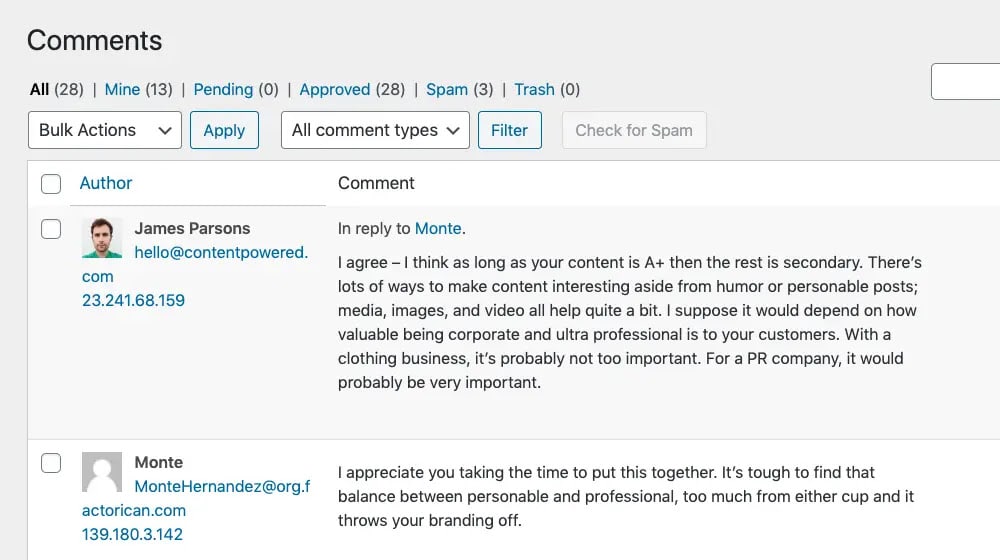
- Read your comments and address the points they make in the main post as a revision.
- Evaluate your data and look for new sources, update information, and draw new conclusions if necessary.
- Look for memes or references that feel dated and need to be updated or removed.
- Evaluate the language, tone, and voice you used and identify shifts in your writing, and update your style.
- Look for competing content or content that rebuts your conclusions and address those directly.
- Look for news, trends, or tertiary topics that are worth adding to the discussion.
- Do a round of fresh keyword research to find new secondary keywords to add.
- Enhance your content with better media, images, metadata, Schema, and other details. For example, stock photos can impact your SEO in ways worth considering when refreshing visuals.
The specific range of options you have for updating your content depends on what the content is, how you cover topics, and how much the industry has moved in that area. Some content doesn't need updating very often, while other content might benefit from more frequent attention.
Interestingly, a recent study of nearly 15,000 URLs indicated that small, minor changes to content had no real effect on rankings or value, while more significant changes (adding 31% or more to the content of the page) were more significant. It makes sense, too; small changes to language don't matter when Google is already analyzing content based on semantic meaning rather than specific verbiage.
How often should you update content?
This is also a question worth a whole post, which is why I already wrote one. The main answer is: it depends on the content.
Remember that, according to the pareto principle, 80% of your blog's traffic will come from 20% of your posts. The top 20% of well-performing posts would be an obvious target, but they may not actually be the best options.
Instead, look for content that is falling in traffic and value, that is dropping out of that top 20%. These are good targets for a refresh.
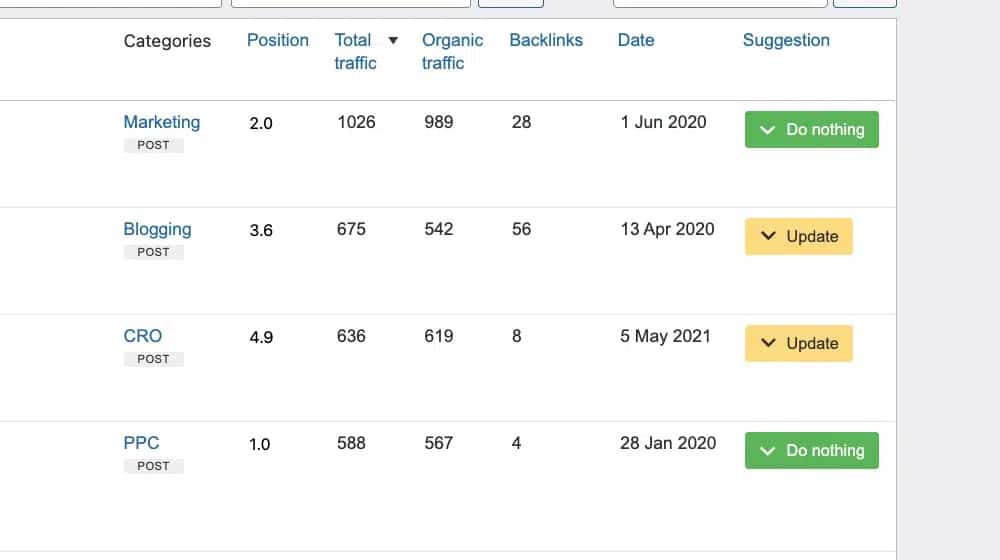
Old content that used to have value, but has been left behind now, is also a good choice. The topic needs to be relevant, though; there's no sense in updating a tutorial for using a tool that doesn't work the same way or exist at all anymore, right?
Remember, too, that some content needs more than just a refresh. When it comes down to it, if you're writing a whole new post, it might not be a bad idea to create something new from scratch. But it's all contextual; maybe the old URL has enough value and backlinks that a total rewrite would boost it more.
It's also worth paying attention to any time after a Google core algorithm update. These are often times of upheaval in the rankings, and if you lose out, making changes can help you regain your lost position.
How do you tell what content needs an update?
Vibes, mostly.
Alright, so that's not really an answer. A lot of it comes down to value, trendlines, and the potential an update could bring to the table.
If a post had value and is losing it, it's a good candidate for an update to address the reason why and bring it back into relevance. Posts with zero visitors are worth evaluating separately - sometimes an update helps, but other times removal may be the better call.
If a post is trending upwards, especially if it's an older post you haven't touched in a while, you could look into why and figure out how to capitalize on that wave.
Some posts don't have much that can be updated beyond a bit of modernization to the language you use. Those might not benefit as much as some that are more dated.
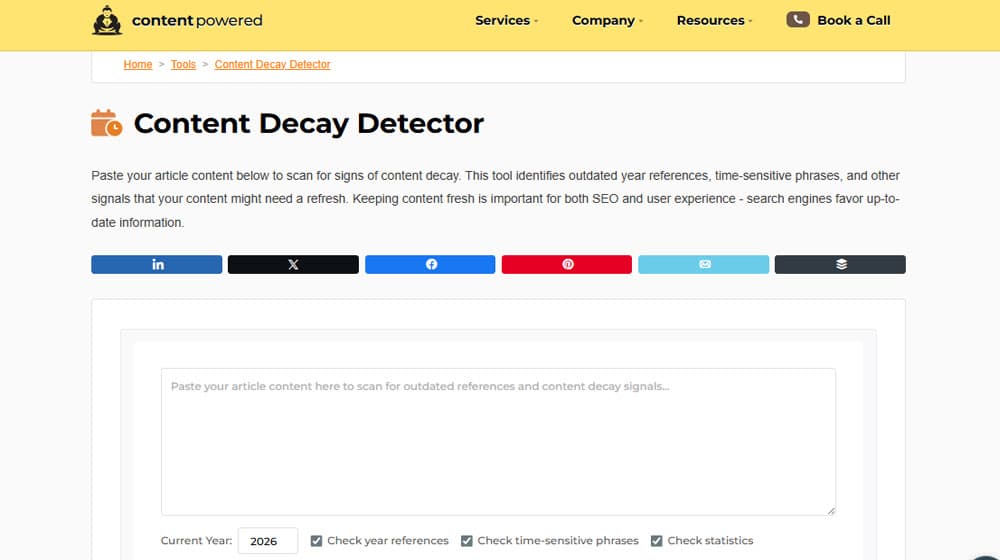
You can also use a tool like my content decay checker, which can analyze your text and identify anything that signals a refresh might be warranted. Give it a try!
How to Track Content Updates in WordPress
So, you're making updates, but how do you track them? You have a lot of options, and they depend on what kind of process you feel most comfortable using.
Option 1: Use WordPress's Built-In Revision Tracking
WordPress actually keeps track of revisions made to any given post. By default, it stores up to three, but you can change the limit to anything from "all revisions ever made" to none at all.
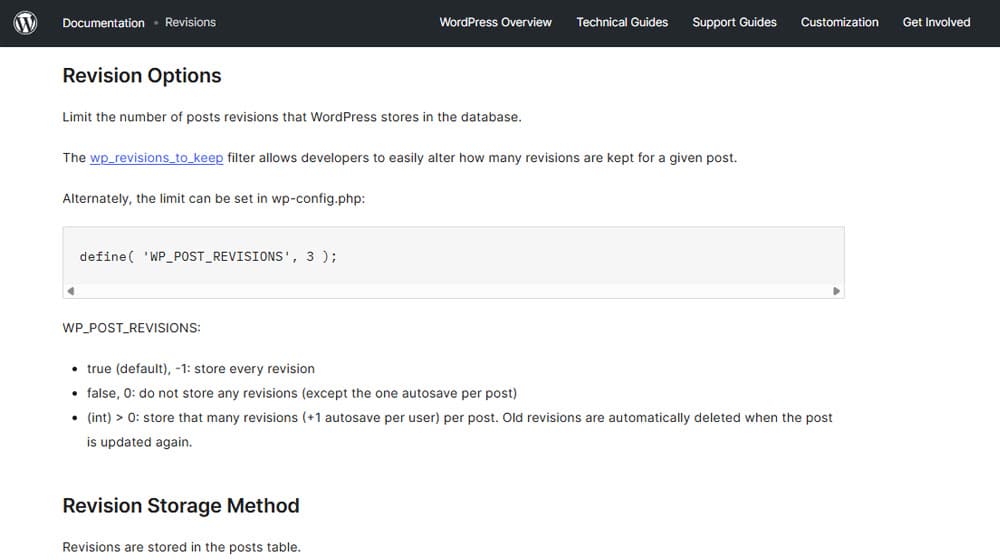
The main reason why you might not think about this option is actually because it's commonly disabled as a way to free up space in your site databases. All of those post revisions need to be stored, and 99% of the time, you don't really care about them, so turning it off is fine.
But if you're trying to keep track of revisions, then you have to have it turned on. You also have to have enough of a revision history to keep track of every version you want to save, which could be a lot for years-old posts.
There's also not an easy way to see revisions. There's no nice table showing you all of your posts and their revisions. It's something you see when editing a post, so it's kind of buried and not all that useful.
Option 2: Keep Tabs on Your Sitemap
One of the easiest options is actually to just keep an eye on your sitemap.
One of the big reasons to have a sitemap is to have a document that tracks all of the pages on your site, along with the date they were most recently updated. You can give that sitemap to Google, and Google can check and know when you publish new posts.
Critically, the sitemap also updates when you change a page. That means it becomes a log of the most recently updated content on your site. For example, here's my main post sitemap.
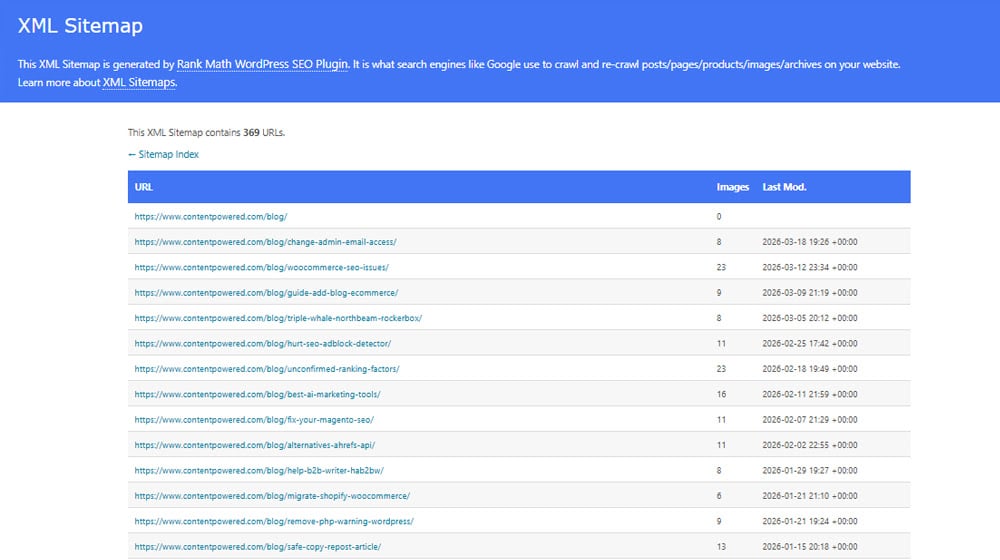
There are downsides to this method, of course. It only shows timestamps and only the most recent one for a given post, so you don't get an update history. It also doesn't show what scale of update was made, just that an update was made. A full post overhaul and fixing a single typo have the same impact.
But, if you want a free, no-code, no-plugin way to see when posts are updated, this does the trick. If you use scheduled posts, you may also want to make scheduled posts update the modified time in WordPress so your sitemap timestamps stay accurate.
Option 3: Change Tracking with WP Activity Log
WP Activity Log is the first of several plugins I'll mention today. It's extremely comprehensive and tracks pretty much every bit of activity on your site, including activity across different supported plugins. Everything from user logins to failed logins to editing posts to changing widgets and more is tracked and logged.
That makes this a great plugin for tracking user behavior and auditing activity, as well as tracking post changes. When it comes to posts specifically, the changes made are flagged with a difference checker; anything removed is highlighted red, anything added is highlighted green, you get the idea. Note that you have to have revision history turned on for this feature to show you changes (otherwise it just shows you a change was made, but can't compare versions).
WP Activity Log has paid versions, but if all you're doing is looking at post logs, you can use the free version. You only need to pay if you want features like advanced searching, emailed reports, and user session management. If so, though, it starts at $140 per year.
Option 4: WordPress Git with VersionPress
If you're a developer or techie who is used to using a change and version control system like Git, VersionPress is for you. If you aren't that kind of person, it's probably overkill and might be a little incomprehensible until you learn the terminology.
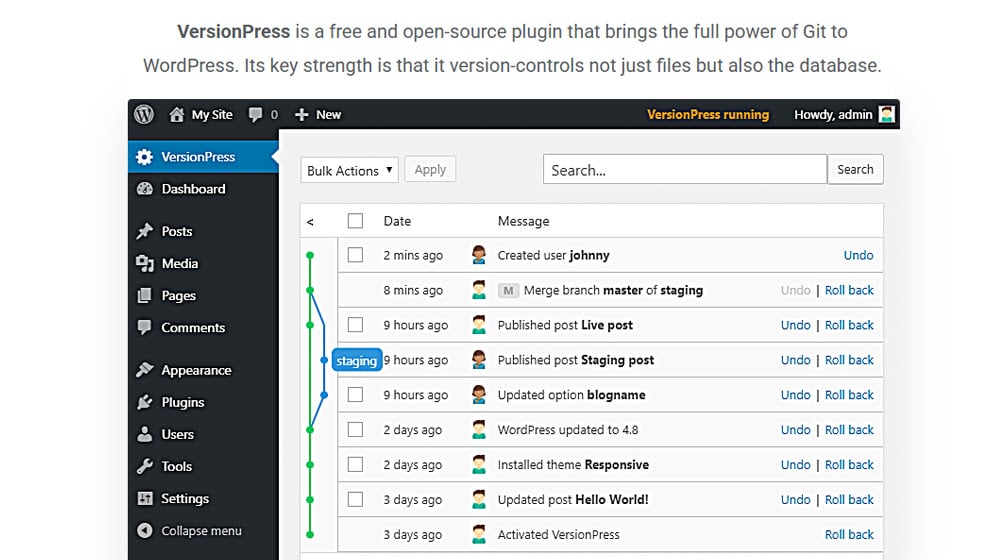
VersionPress uses Git version control tracking to keep tabs on anything changing in your site. This can be changes to things like themes, files, or site settings. Or, it can be changes to a post or page you make. And note when I say Git, I mean actual Git, not some mimic of Git-style functionality. You need to know what all of the terminology means and how to use it.
It can be very helpful if you do, though. You can even use Git-based tools like GitHub or GitLab alongside your site if you want.
If the complexity isn't too much for you or you're a big fan of Git, get VersionPress. It's even free and open source, so you can review it to make sure it's not doing anything you don't want it to before installing it.
Option 5: Maintaining History with Simple History
Simple History is probably one of the most accessible and commonly-used history-tracking plugins that doesn't go deep into a fringe feature or mechanism you might not want. It tracks content changes, updates to posts and pages, changes to taxonomies and attachments, and more.
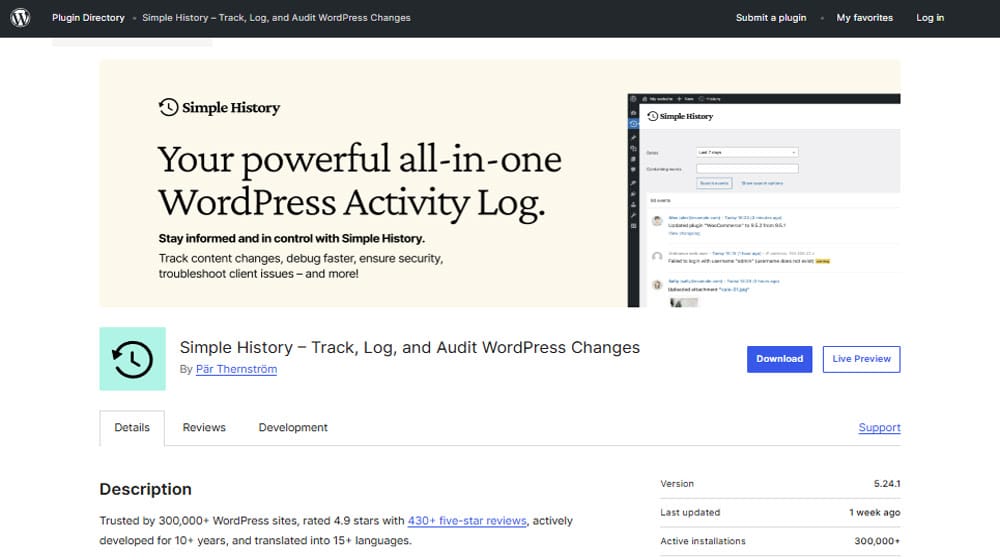
It's a lot like a more user-friendly version of WP Activity Log. You can also tell it where you want to display your history log, how many items you want to track, and more. It's easy to configure once and let it run.
Initially, it might feel more like a log of recent activity than a history, but you can access your full history by searching your history logs. Here, you can filter your history by event (so, in our case, post changes) and can see a full log of activity.
This does have similar drawbacks to a few other options on this list. For example, it doesn't track the scale of changes made, so you have the same weight given to typos as to revisions. You can, however, export your logs in CSV or JSON format if you want.
The base plugin is free, and while there's a premium version, it only adds features like custom log retention, fine-tuning of the logs you keep, log forwarding, and alerts. Most of that isn't terribly useful for our case, but if you wanted to try it, it's $80 per year.
Option 6: DIY Tracking
Since a lot of the available tracking plugins exist more for the sake of security and auditing than content update tracking, you might do best just keeping tabs on it all on your own.
I find that an inevitable part of running a blog is having at least a handful of spreadsheets tracking everything, and this really isn't an exception. How you do it depends on you, but one possibility would be this:
First, have a spreadsheet with your keyword and topic ideas. This sheet tracks your keyword research, the information and metrics you look up for each keyword, and whether or not you've created content for that keyword already. Content created for the keyword can be linked in the spreadsheet.
Next, have another spreadsheet with the URLs for each page you publish. You can have the page URL, page title, primary keyword, and any other data you like. The main keys are the page title and URL, so it's easy to keep track of them. It can also be useful to check the word count of your WordPress posts when logging update details.
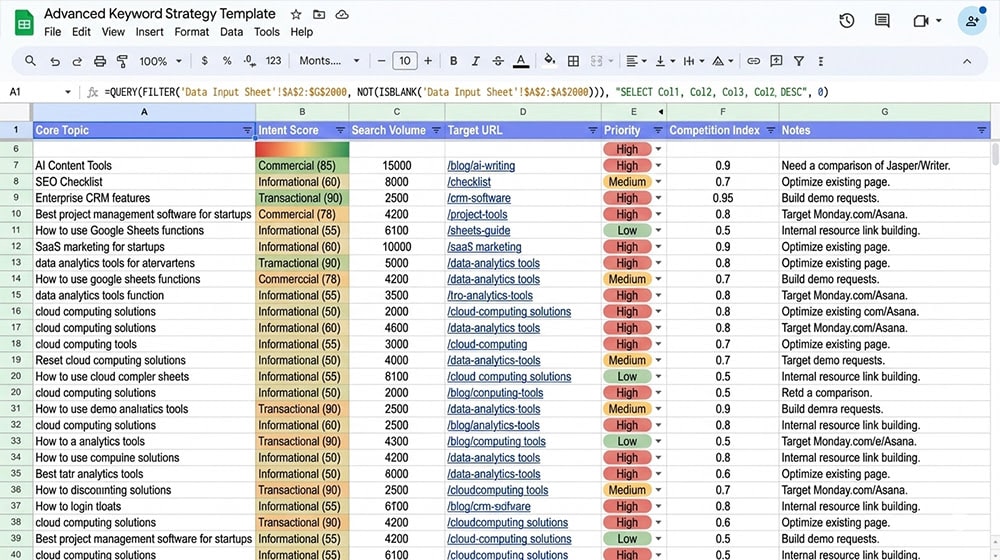
When you update a post to any significant degree, you can save the old version in a document somewhere (or a Google Doc, if you prefer) and link to or reference it in your spreadsheet. The link always points to the live version, and older versions are still saved if you want them.
You can set up scripts or whip up a custom plugin to do some of this bookkeeping for you, or just get in the habit of doing it manually. You can even write a changelog for what you update and save that as well, if that's helpful to you.
The key here is a process that works for you, not necessarily this process. As long as it works for you, that's all you need.
Which option is best? Well, that depends on what you want to track. As a techie myself, something like VersionPress is intuitive and easy to use, but WP Activity Log might be better for other readers. Either way, give some of these options a try and let me know what you settle on!

Written by James Parsons
Hi, I'm James Parsons! I founded Content Powered, a content marketing agency where I partner with businesses to help them grow through strategic content. With nearly twenty years of SEO and content marketing experience, I've had the joy of helping companies connect with their audiences in meaningful ways. I started my journey by building and growing several successful eCommerce companies solely through content marketing, and I love to share what I've learned along the way. You'll find my thoughts and insights in publications like Search Engine Watch, Search Engine Journal, Forbes, Entrepreneur, and Inc, among others. I've been fortunate to work with wonderful clients ranging from growing businesses to Fortune 500 companies like eBay and Expedia, and helping them shape their content strategies. My focus is on creating optimized content that resonates and converts. I'd love to connect – the best way to contact me is by scheduling a call or by email.





Comments